
Microsoft Dynamics 365 Intelligent Order Management IOM Step by Step Tutorial
Follow Below StepsStep 1 - COMPLETEDCreate the free 30 Days Trial Version Environment for the Microsoft Dynamics 365 Intelligent Order Management
Step 2 - COMPLETEDSet up an IOM environment / Configure platform connection references in Microsoft Dynamics 365 Intelligent order Management
Step 3 - COMPLETEDCreate a new solution for PROVIDER Customization in Microsoft Dynamics 365 IOM / Create a provider solution
Step 4 - COMPLETEDCreate RequestBin Custom connector (Power Platform) for Step by Step Microsoft IOM Tutorial
Step 5Create new intake provider definition for Step by Step IOM Tutorial Scenario- Microsoft Dynamics 365 Intelligent Order Management / Register a new Provider in Library
Step 6Create a provider message request handler for Quick Start Lab Scenario for Microsoft Intelligent order Management IOM tutorial
Step 7Create Fulfillment provider in Microsoft Dynamics Intelligent Order Management IOM – Order to Fulfillment in IOM
Step 8Add a provider definition logic definition to the Outlook Provider Definition in Microsoft Dynamics Intelligent Management IOM
Step 9Create a provider action - Power Automate Flow - to send a fulfillment Order payload to RequestBin
Step 10Activate the Intake, Fulfillment, & Internal Application Service provider created in Previous Step by Step IOM Tutorial
Step 11Create Orchestration policies and their associated rules for Quick Start Lab Scenario in Microsoft Dynamics 365 Intelligent Order Management IOM
Step 12Create Sales Order Orchestration flow in Microsoft Dynamics Intelligent Order Management IOM
Step 13Set up Customer(Account) and product mapping in Microsoft Dynamics Intelligent order Management IOM
Step 14Run a sample order orchestration flow in Microsoft Dynamics 365 Intelligent Order Management - END TO END DEMO IOM
Create new provider definition - IOMLabOrderIntakeProvider
To add a provider definition logic definition to the provider definition, follow these steps.
- In your Intelligent Order Management application, go to Providers > Library
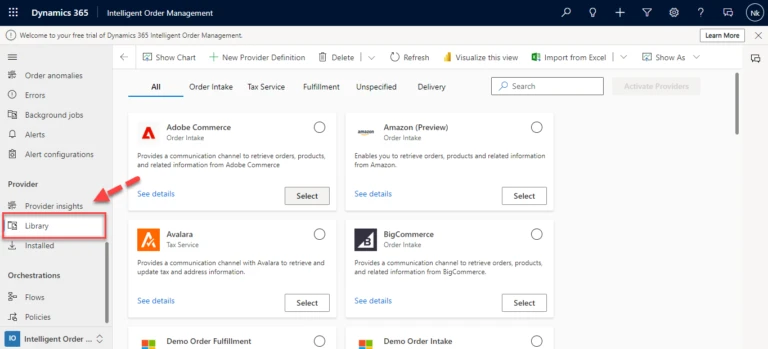
2. Select New Provider Definition on the top of the ribbon.
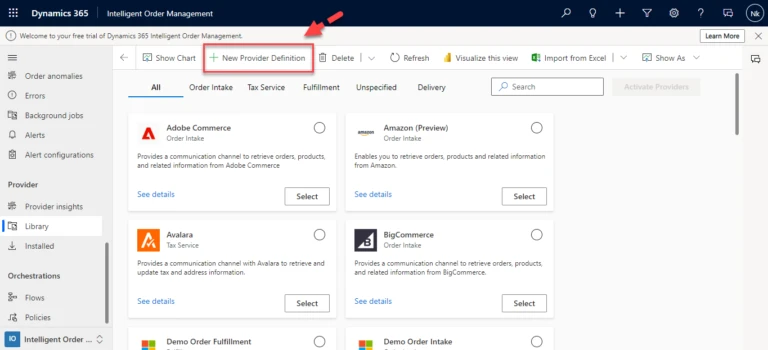
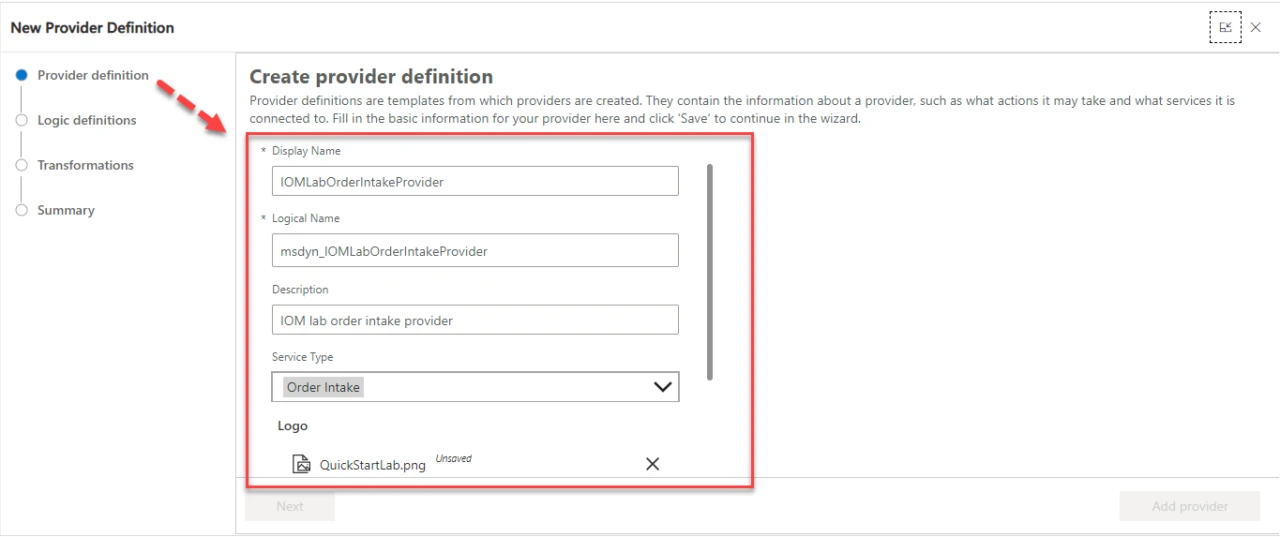
3. In the create provider definition dialog box, do the following:
- Enter the “IOMLabOrderIntakeProvider” in the Display Name.
- Enter “msdyn_IOMLabOrderIntakeProvider” in the Logical Name,
- Enter “IOM lab order intake provider” in the Description.
- Enter “Order intake” in the Service Type.
- Select “QuickStartLab.png” in the Logo.
Note :- You can create your own logo for the Quick Start lab or you can skip this step as it is not a mandatory field.
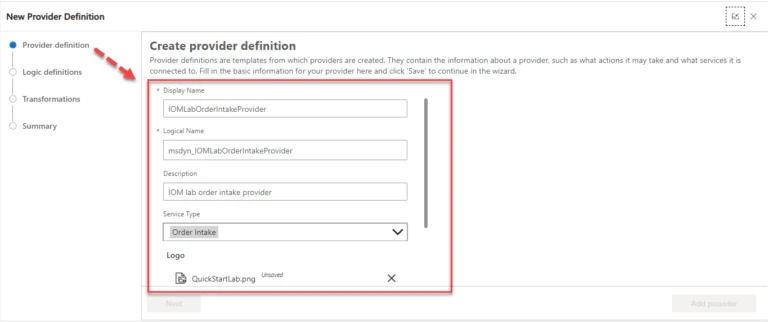
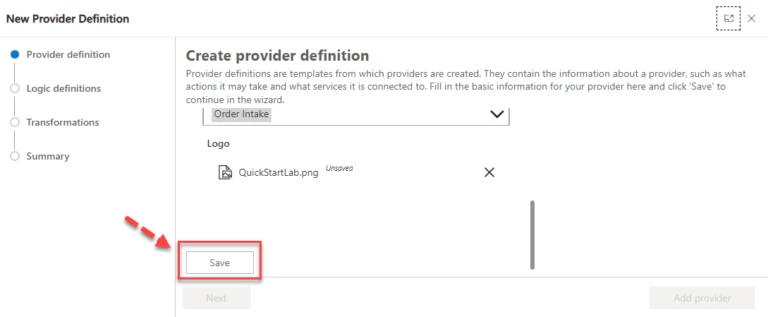
4. Select Save
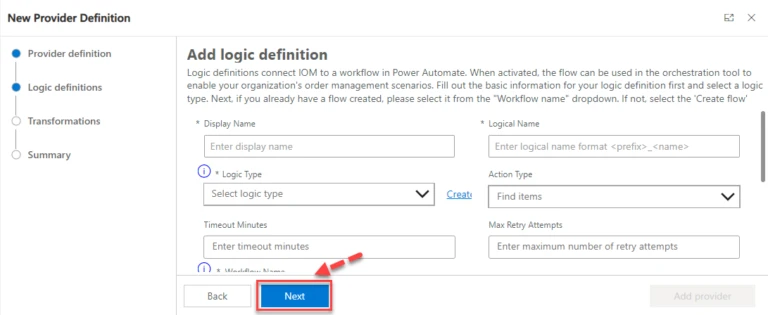
5.Click on Next.
Note – Skip the logic definition for now that will be done later after creating the Power Automate Flow for provider message handler.
6. Select the Transformations tab.
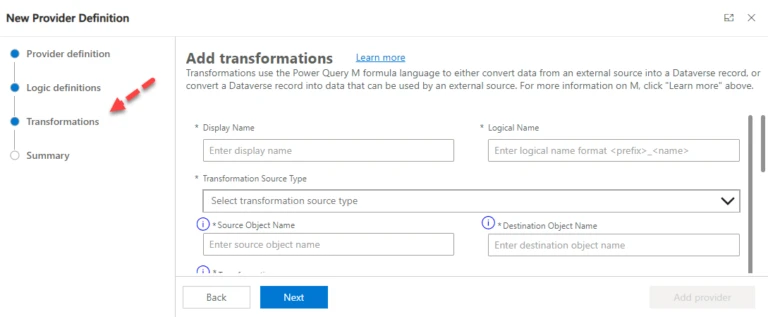
7. In the New IOM Provider Definition Transformation dialog box, do the following
- Enter “IOMLab Order to Dataverse Order” in the Display Name.
- Enter “msdyn_IOMLabOrderIntake_Order” in the Logical Name.
- Enter or select Json Payload in the Transformation Source Type .
- Enter “IOMLabOrderIntakeProvider” in the Source Object Name,
- Enter “Dataverse Order” in the Destination Object Name,
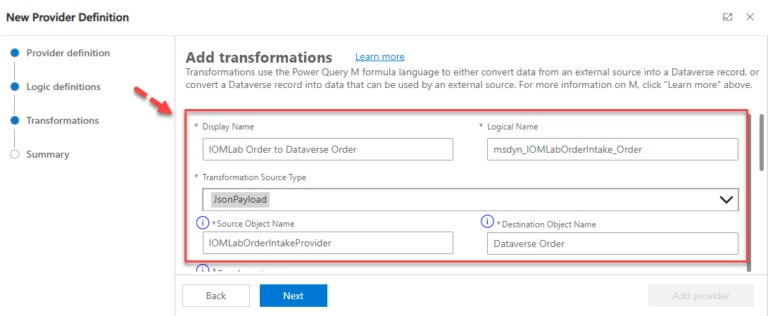
8. Paste the below following M query code in the Transformation and click on Add.
shared ImportMappingKey = [
account = {
[
ExternalRecordKey = [ProviderName = "IOMLabOrderIntakeProvider"],
SelectedFields = {"accountid"}
]
},
pricelevel = {
[
ExternalRecordKey = [ProviderName = "IOMLabOrderIntakeProvider"],
SelectedFields = {"pricelevelid"}
]
},
product = List.Distinct(List.Transform(Source[orderdetails], each
[
ExternalRecordKey = [sku = _[sku]],
SelectedFields = {"productid"}
])),
uom = List.Distinct(List.Transform(Source[orderdetails], each
[
ExternalRecordKey = [unit = _[unit]],
SelectedFields = {"uomid"}
]))
];
shared TransformSourceData =
let
orderProducts = Source[orderdetails],
account = IOM.MapRecord(IOM.MappingTables[account], [ProviderName = "IOMLabOrderIntakeProvider"]),
pricelevel = IOM.MapRecord(IOM.MappingTables[pricelevel], [ProviderName = "IOMLabOrderIntakeProvider"]),

orderheader = Record.FromTable
(
Table.SelectRows
(
Record.ToTable
(
[
ordernumber = Text.From(Source[ordernumber]),
name = ordernumber,
#"customerid_account@odata.bind" = "/accounts(" & Text.From(account[accountid]) & ")",
#"pricelevelid@odata.bind" = "/pricelevels(" & Text.From(pricelevel[pricelevelid]) & ")",
billto_city = Record.FieldOrDefault(Source, "billtocity"),
billto_stateorprovince = Record.FieldOrDefault(Source, "billtostateorprovince"),
billto_country = Record.FieldOrDefault(Source, "billtocountry"),
billto_postalcode = Record.FieldOrDefault(Source, "billtozip"),
shipto_city = Record.FieldOrDefault(Source, "shiptocity"),
shipto_stateorprovince = Record.FieldOrDefault(Source, "shiptostateorprovince"),
shipto_country = Record.FieldOrDefault(Source, "shiptocountry"),
shipto_postalcode = Record.FieldOrDefault(Source, "shiptozip")
]
), each [Value] <> null
)
),

orderlines = List.Transform(orderProducts, each
Record.FromTable
(
Table.SelectRows
(
Record.ToTable
(
[
ispriceoverridden = true,
#"productid@odata.bind" = "/products(" & IOM.MapRecord(IOM.MappingTables[product], [sku = Record.FieldOrDefault(_, "sku")])[productid] & ")",
#"uomid@odata.bind" = "/uoms(" & IOM.MapRecord(IOM.MappingTables[uom], [unit = Record.FieldOrDefault(_, "unit")])[uomid] & ")",
quantity = [quantity],
shipto_name = Record.FieldOrDefault(orderheader, "shipto_name"),
shipto_contactname = Record.FieldOrDefault(orderheader, "shipto_contactname"),
shipto_line1 = Record.FieldOrDefault(orderheader, "shipto_line1"),
shipto_line2 = Record.FieldOrDefault(orderheader, "shipto_line2"),
shipto_line3 = Record.FieldOrDefault(orderheader, "shipto_line3"),
shipto_city = Record.FieldOrDefault(orderheader, "shipto_city"),
shipto_stateorprovince = Record.FieldOrDefault(orderheader, "shipto_stateorprovince"),
shipto_country = Record.FieldOrDefault(orderheader, "shipto_country"),
shipto_postalcode = Record.FieldOrDefault(orderheader, "shipto_postalcode"),
shipto_telephone = Record.FieldOrDefault(orderheader, "shipto_telephone")
]
), each [Value] <> null
)
)
),

salesorder = Record.AddField(orderheader, "order_details", orderlines)
in Text.FromBinary(Json.FromValue(salesorder));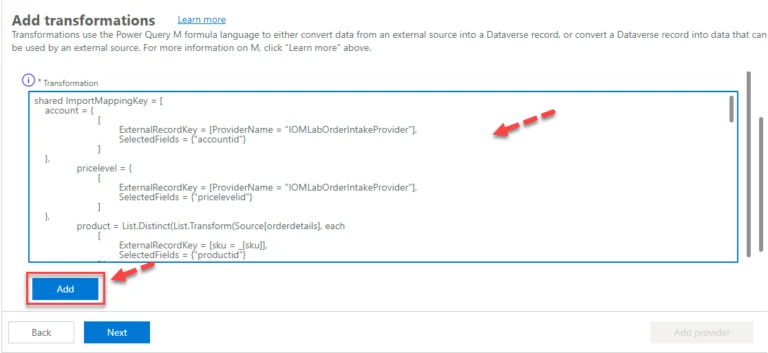
9. As you can see Transformation is added into the then click on Next.
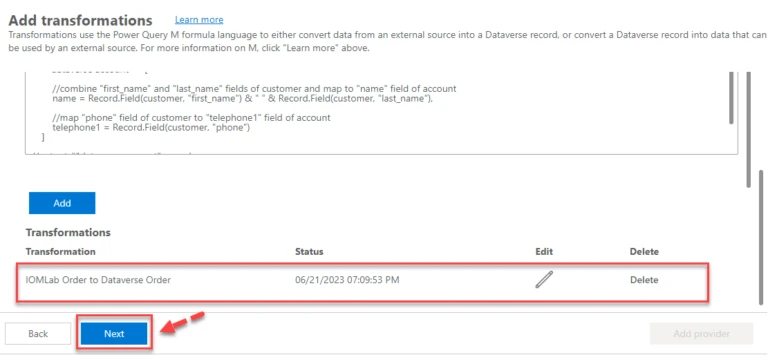
10. Click on Add provider.
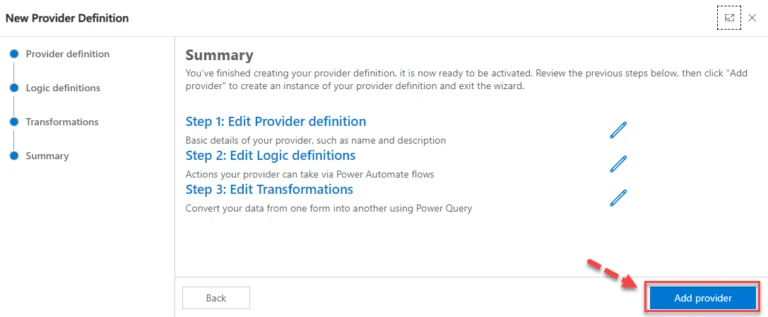
11. select Transformation.
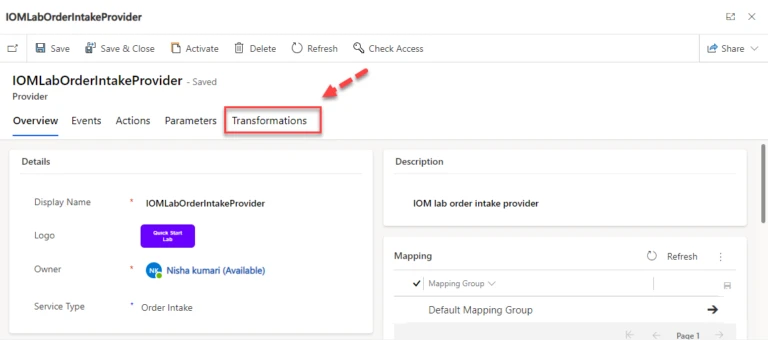
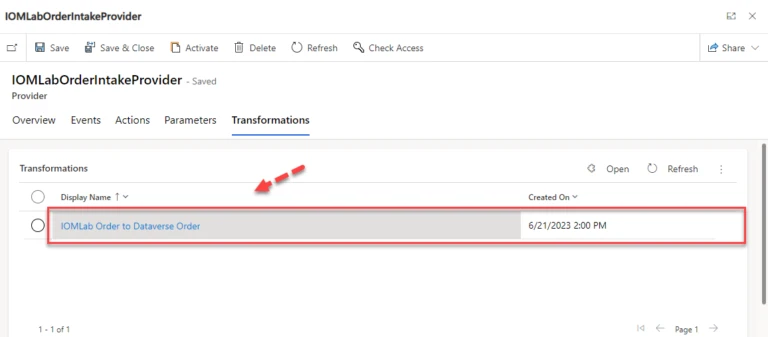
12. Open the newly created Transformation.
13. Create a JSON file, paste in the following code, and save it.
{
"ordernumber": "IOMLabOrder001",
"shiptocity": "BELLEVUE",
"shiptostateorprovince": "WA",
"shiptocountry": "US",
"shiptozip": "98007",
"billtocity": "BELLEVUE",
"billtostateorprovince": "WA",
"billtocountry": "US",
"billtozip": "98007",
"orderdetails": [
{
"sku": "883988211855",
"unit": "each",
"quantity": 11
}
]
}
14. Next to the Sample Data field, select Choose File and upload the JSON file you created.
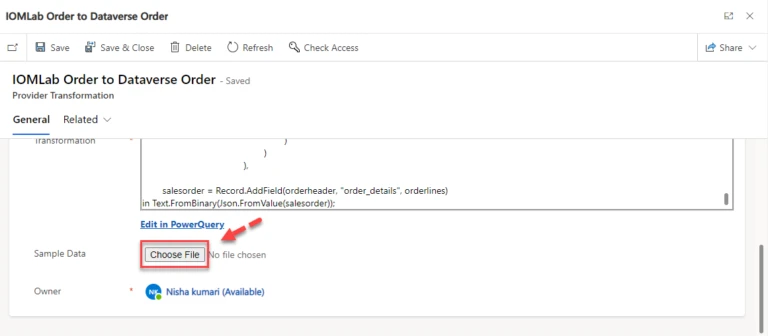
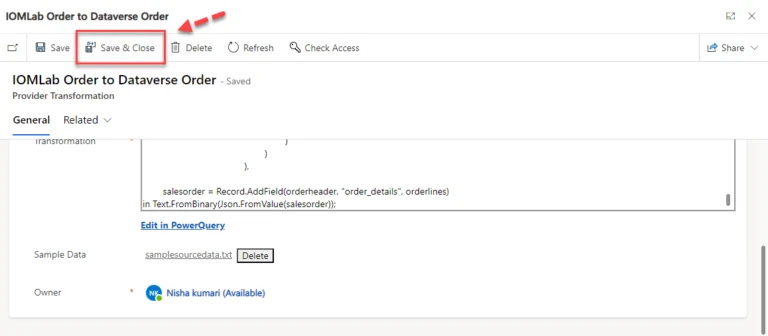
14. After uploading the JSON file you created Select Save & close.
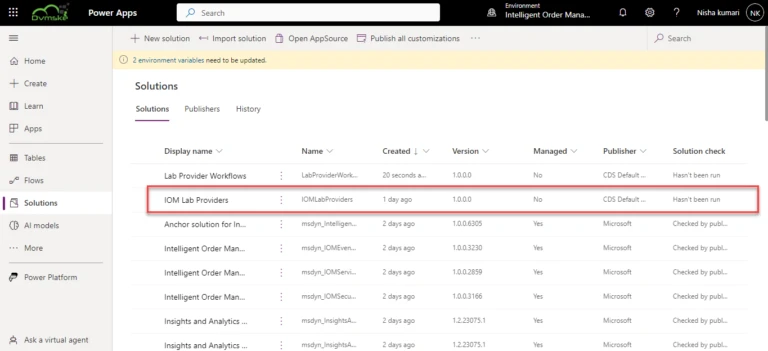
Add provider definition & transformation to solution
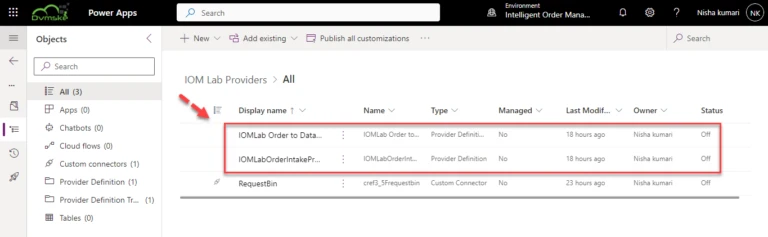
- Go to the Power App Maker portal and navigate to the newly-created solution IOMLabProviders.
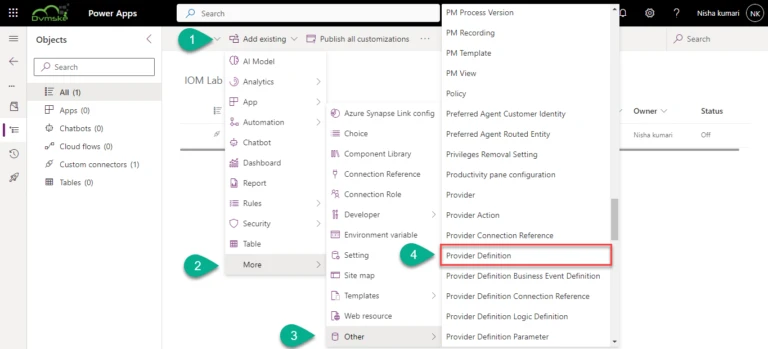
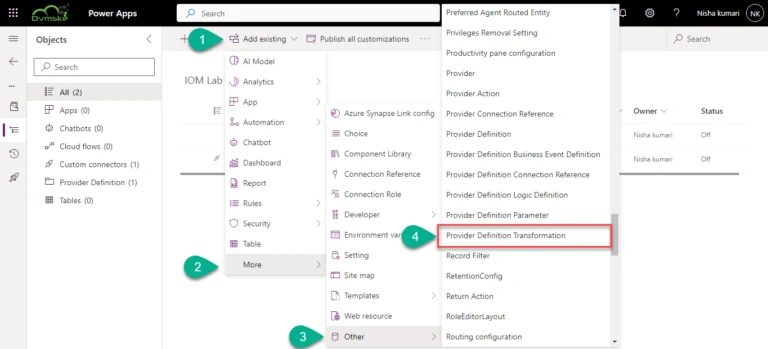
2. Select Add existing > More > other > Provider Definition..
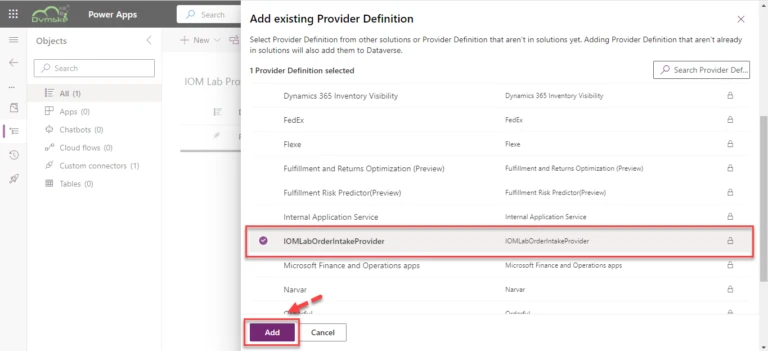
3. Select IOMLabOrderIntakeProvider, and then select Add to add it to the solution.
4. After adding the Provider definition again repeat the same step to add the transformation Select Add existing > More > other > Provider Definition Transformation.
5. Select IOMLab Order to Dataverse Order, and then select Add to add it to the solution.
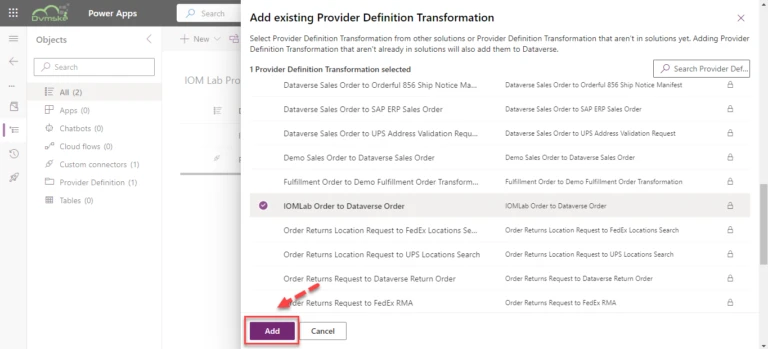
As you can see Provider definition & Provider Definition Transformation are added into the IOMLabProviders Solution