
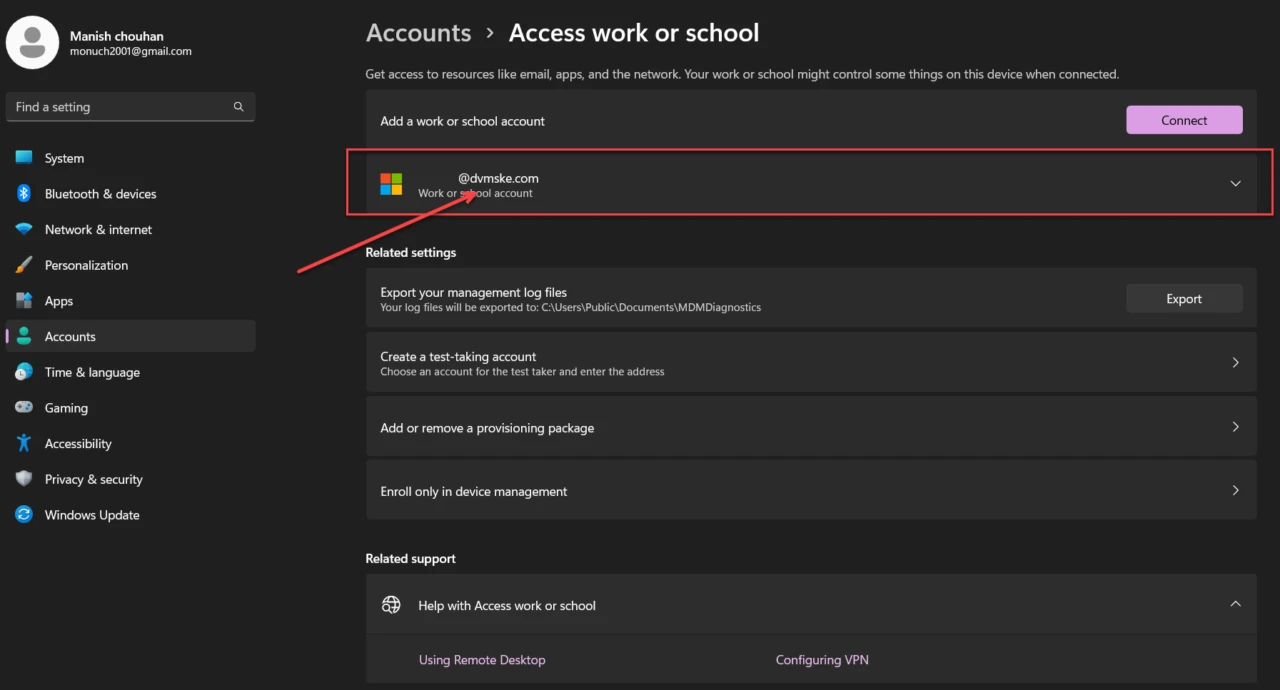
If you need to view your work email, contacts, and calendar, and the computer you’re using is a personal PC that you own and manage, you can easily add your work account email account to your computer.
STEP 1: Connect your account
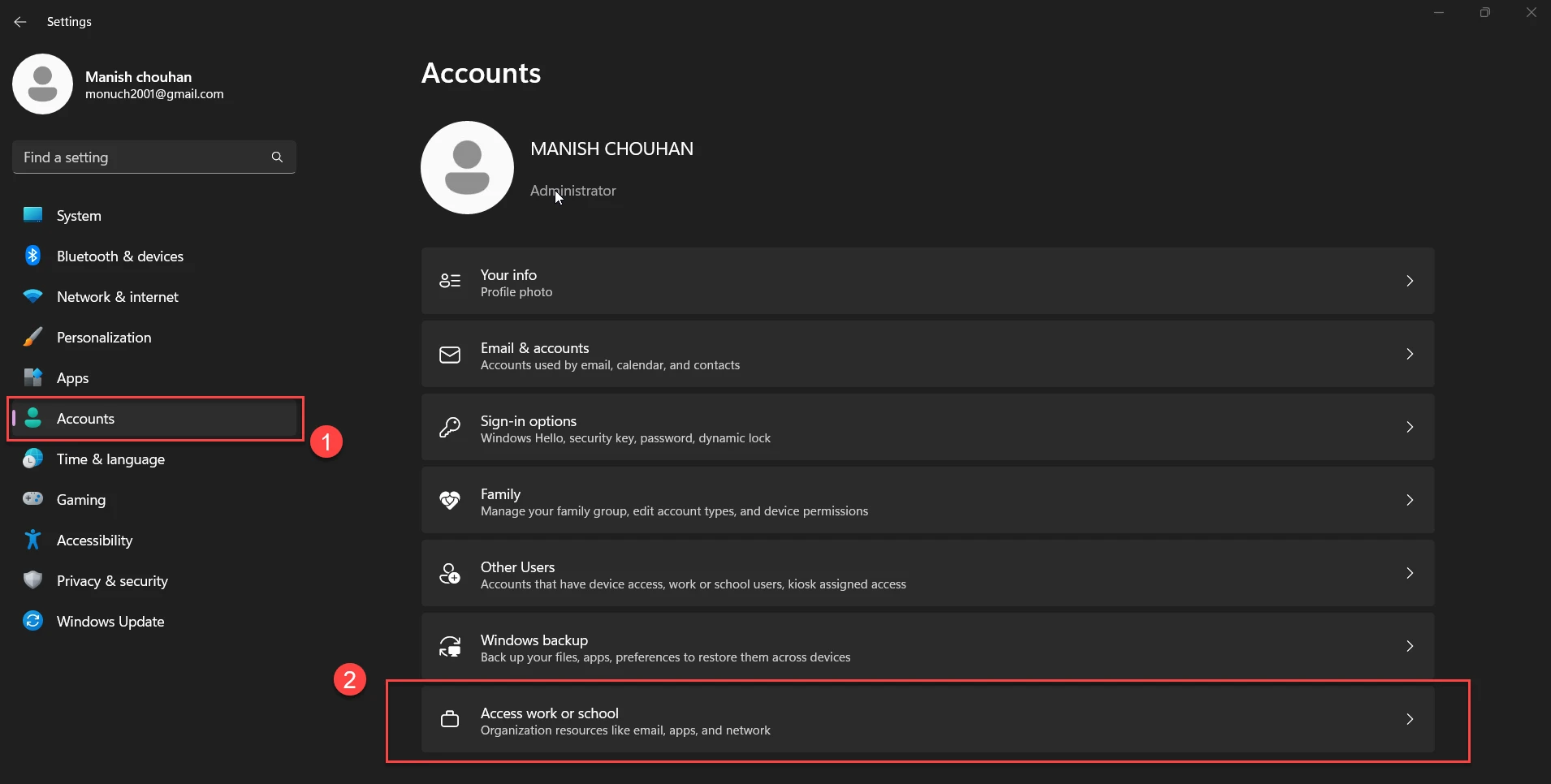
- For windows 10 : Go to Settings > Accounts > Access work or school.
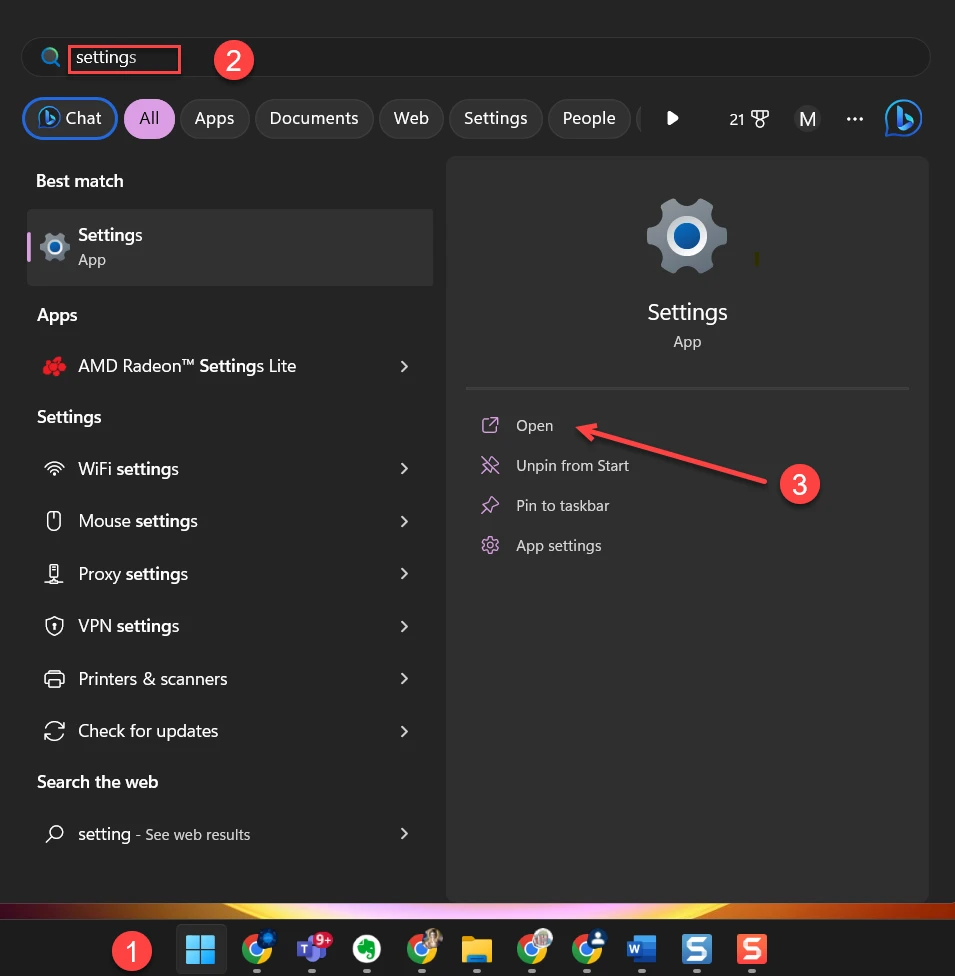
- for Windows 11 : Select Start > Settings > Accounts

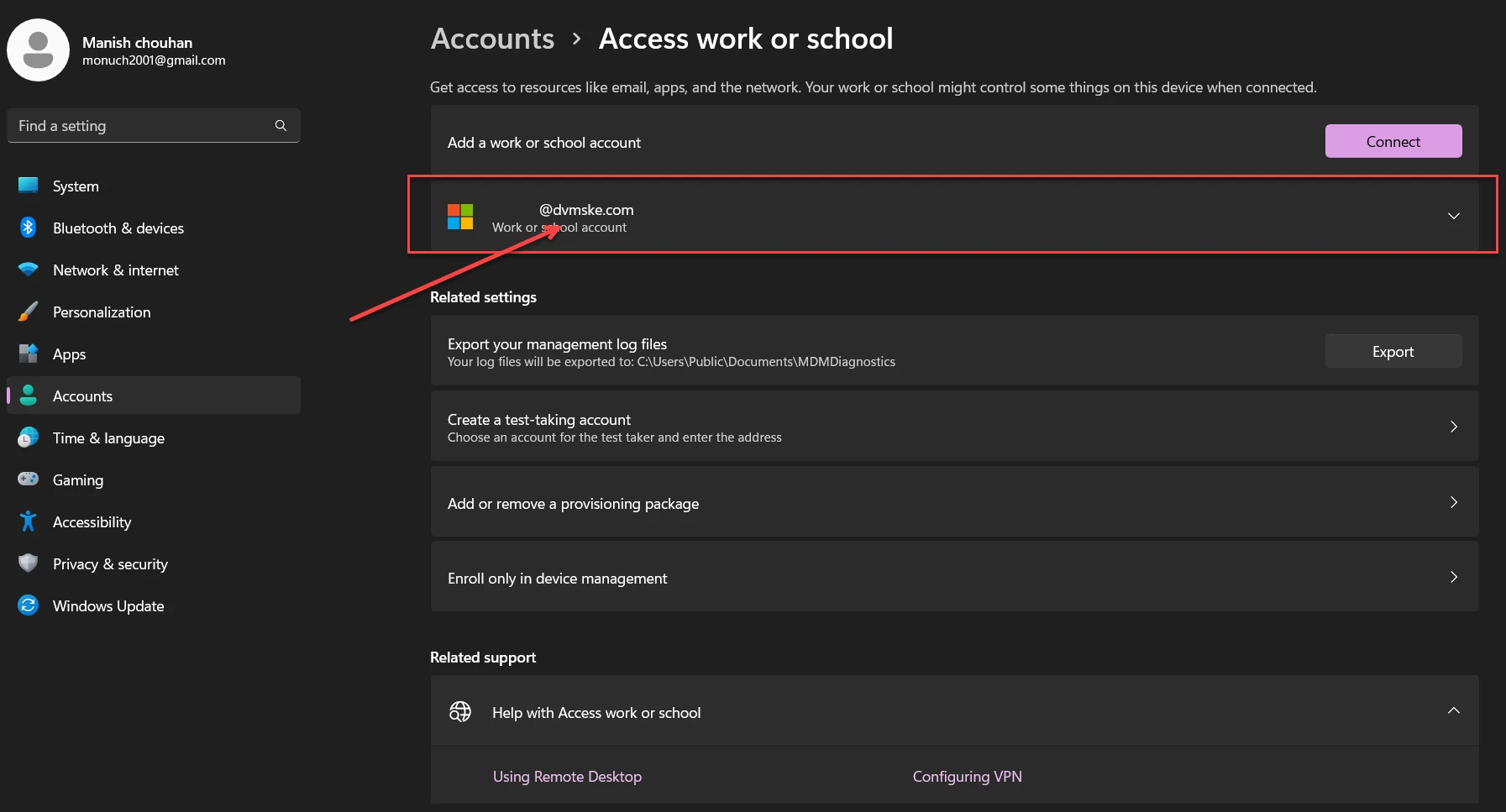
STEP 1: Connect your account — screenshot 1 View full size - Navigate to Access Work or School

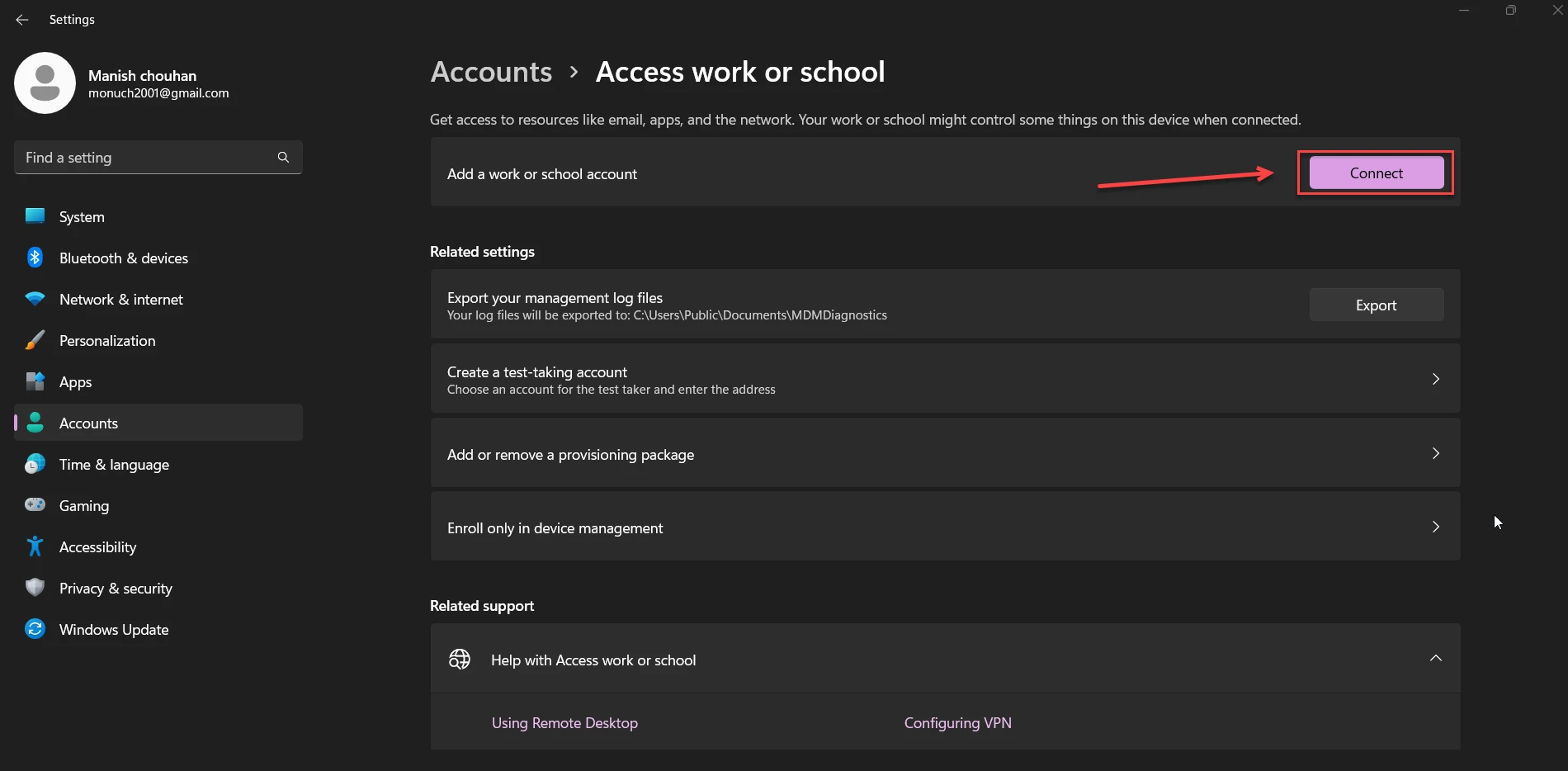
STEP 1: Connect your account — screenshot 2 View full size - Under Work or school users > Add a work or school account, select Add account.

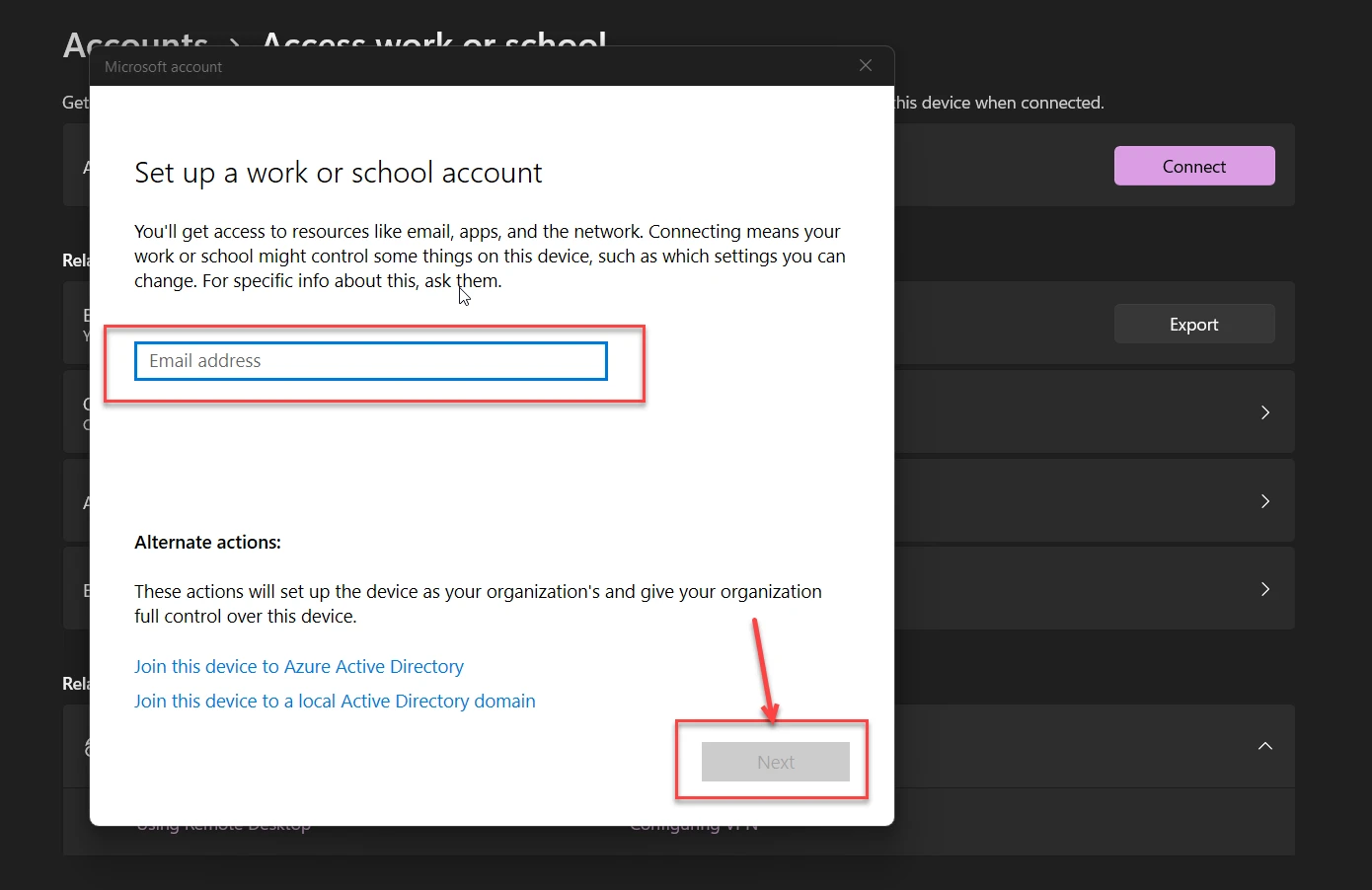
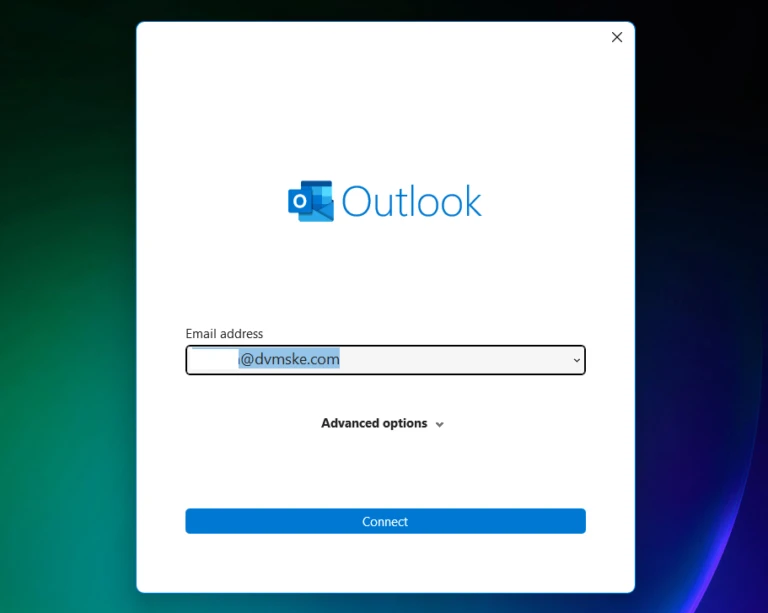
STEP 1: Connect your account — screenshot 3 View full size - Login with Work Credentials

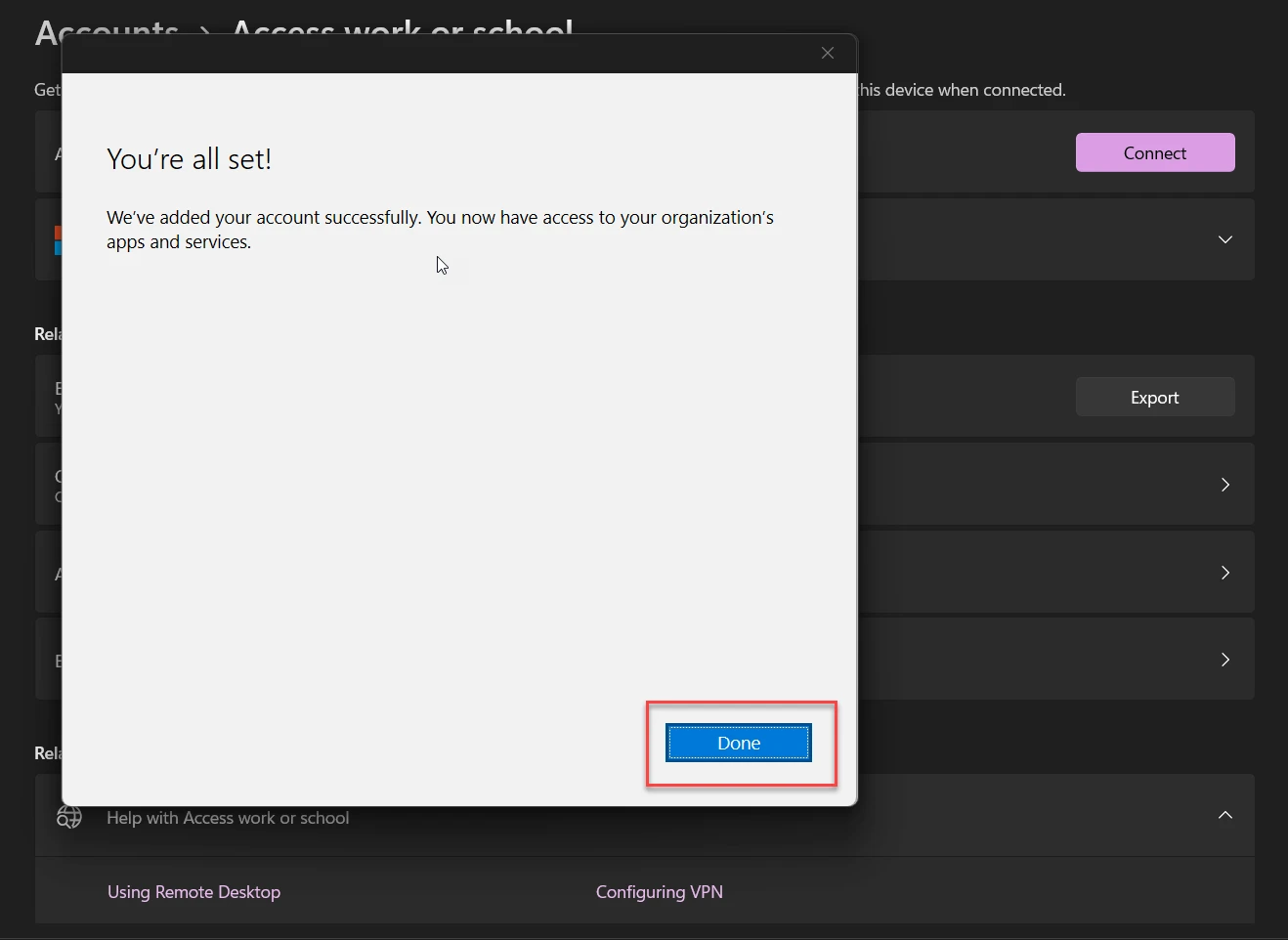
STEP 1: Connect your account — screenshot 4 View full size - You have successfully added Work Account to your PC

STEP 1: Connect your account — screenshot 5 View full size 
STEP 1: Connect your account — screenshot 6 View full size