If your organization uses multi-factor authentication (MFA) for Microsoft 365, the Microsoft Authenticator smartphone app is the easiest verification method. No need to enter a 6-digit code, just one click. Also, there are no roaming charges for using it while traveling.
STEP 1: Download and install Microsoft Authenticator app
Two-step verification: The standard verification method, where one of the factors is your password. After you sign in using your username and password, you can either approve a notification or enter a provided verification code.
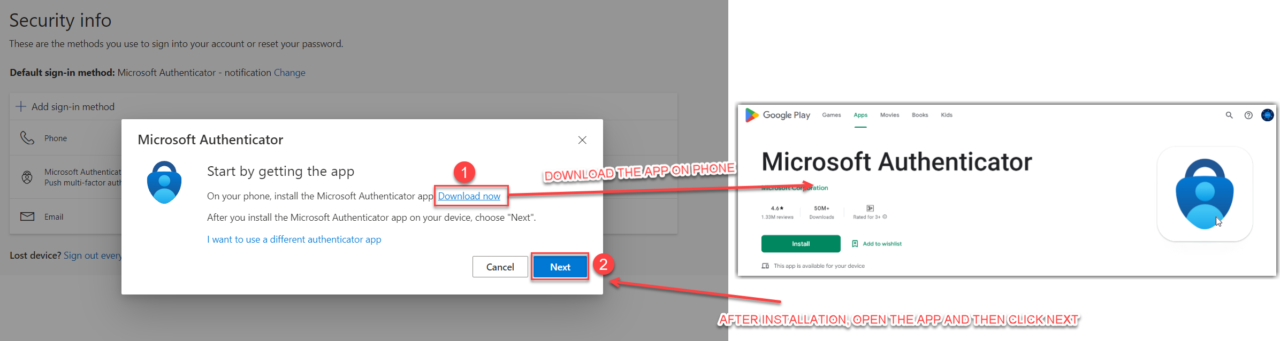
Install the latest version of the Authenticator app, based on your operating system:
- Google Android. On your Android device, go to Google Play to download and install the Authenticator app.
- Apple iOS. On your Apple iOS device, go to the App Store to download and install the Authenticator app.
STEP 2: Navigate to MFA setup Portal
- Navigate to Below URL : aka.ms/mfasetup

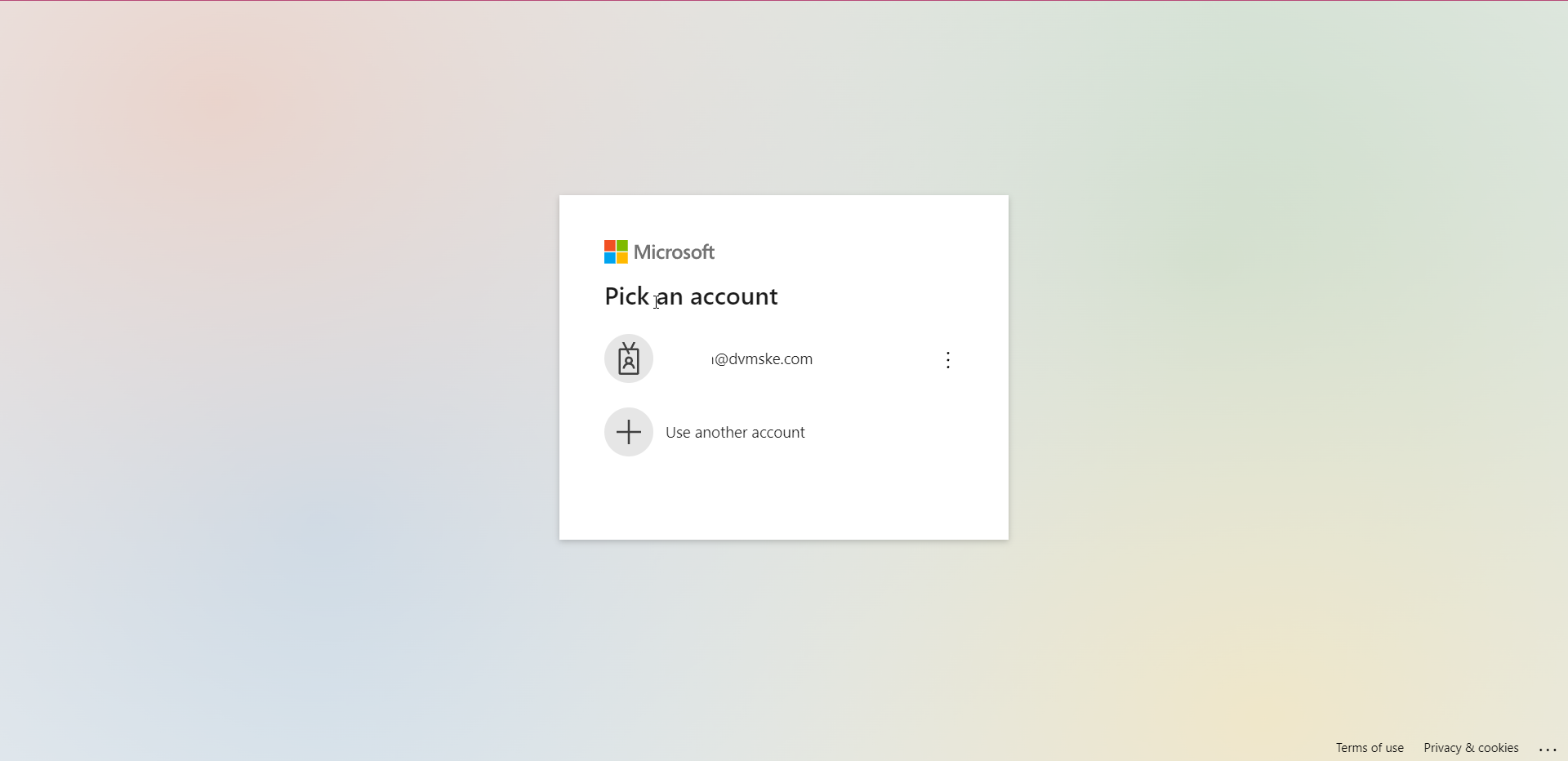
- Login with the provided Credentials

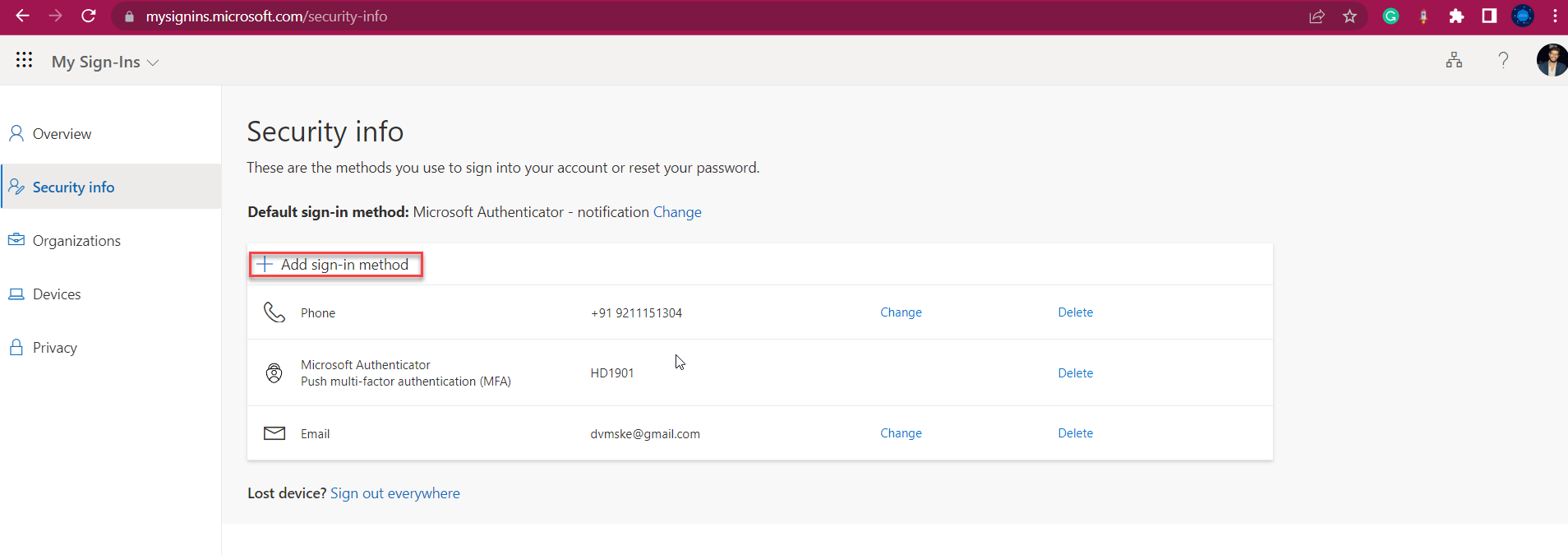
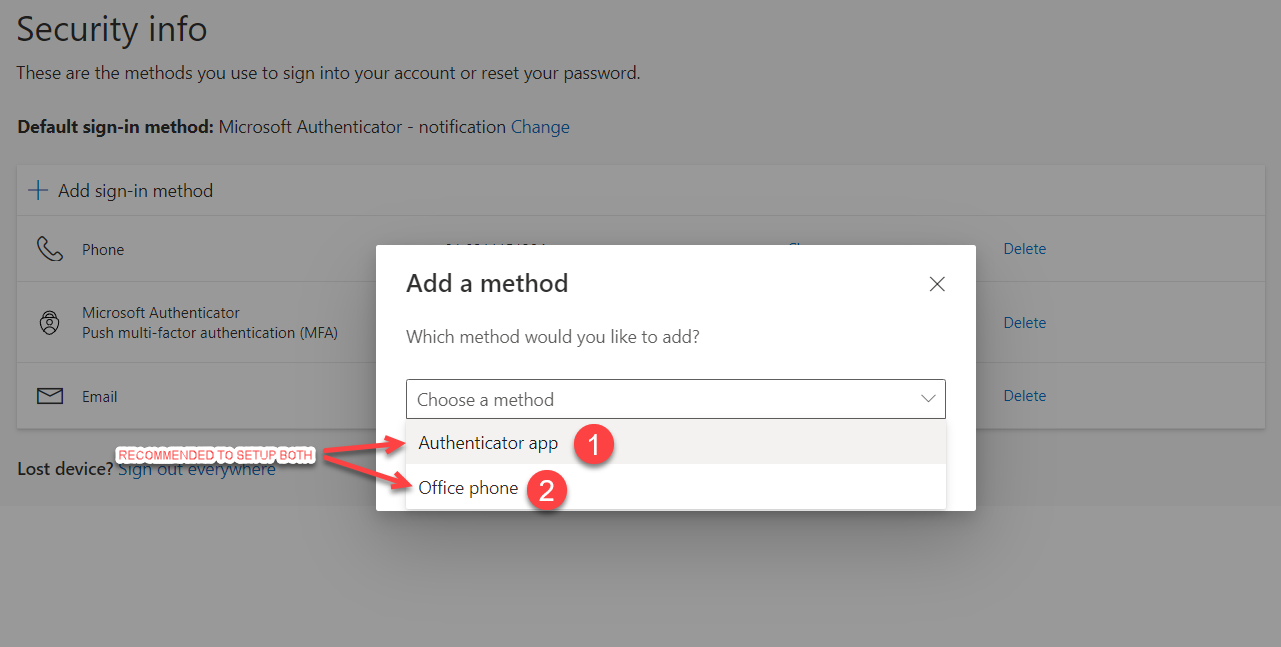
- Click “Add Sign-In Method”


STEP 3: Select "Authenticator App" from Method
- Select “Authenticator App” from the selection, recommendation is to configure more.

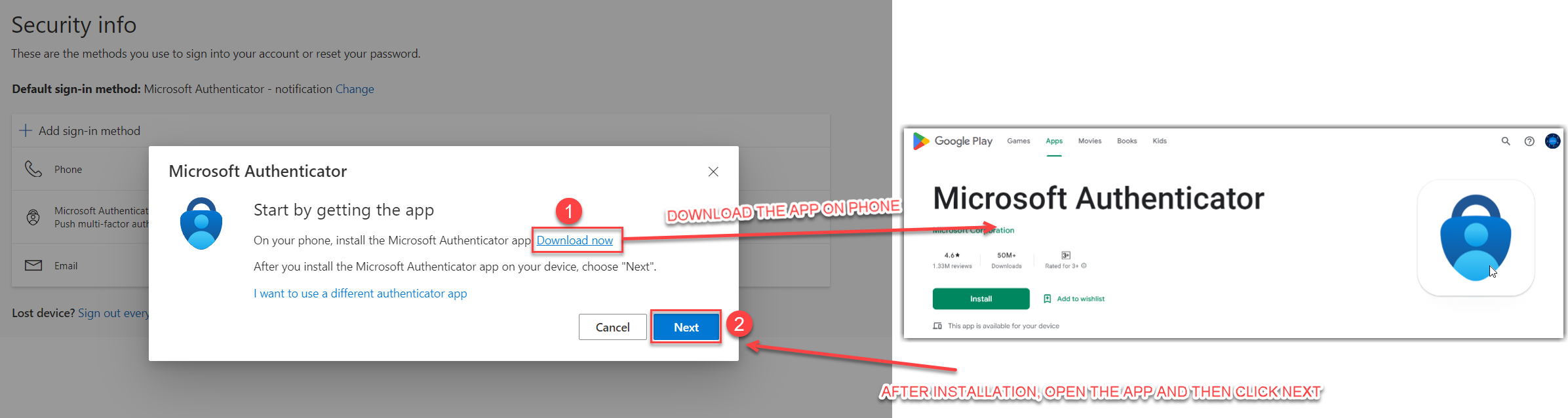
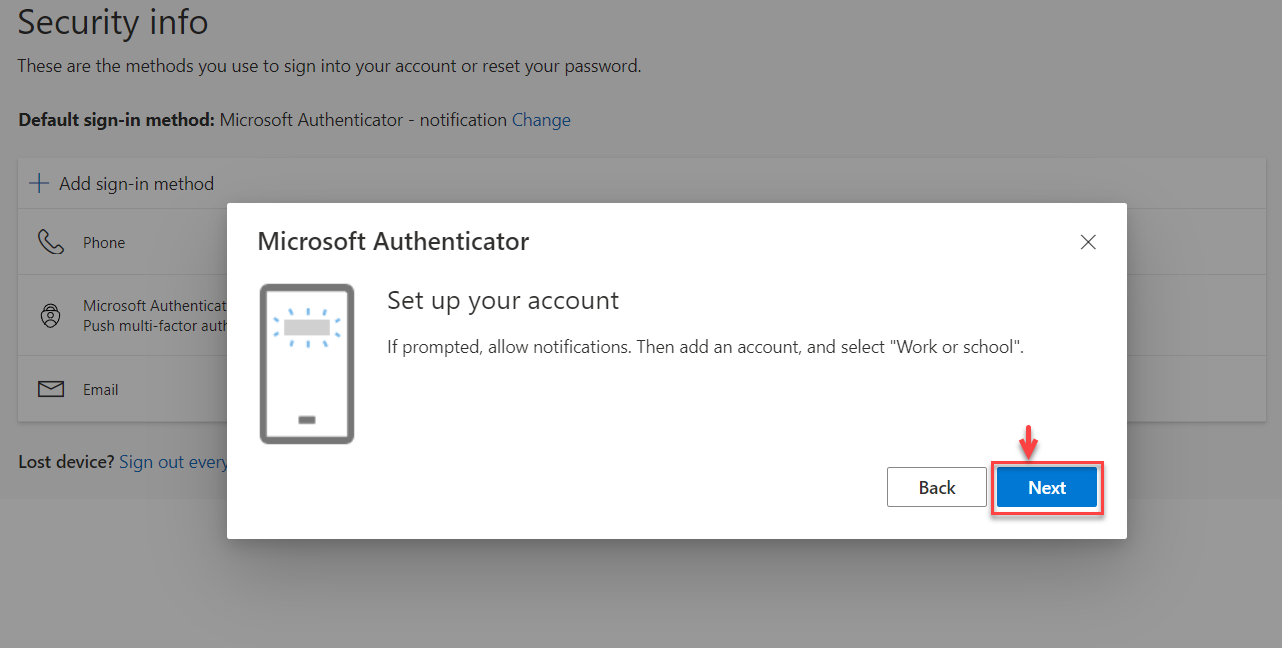
- Download the Mobile app as confirmed above, Open the App and then Click Next


STEP 4: Add Work Account to "Microsoft Authenticator App"
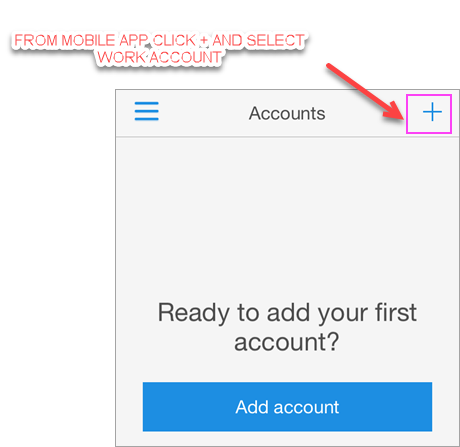
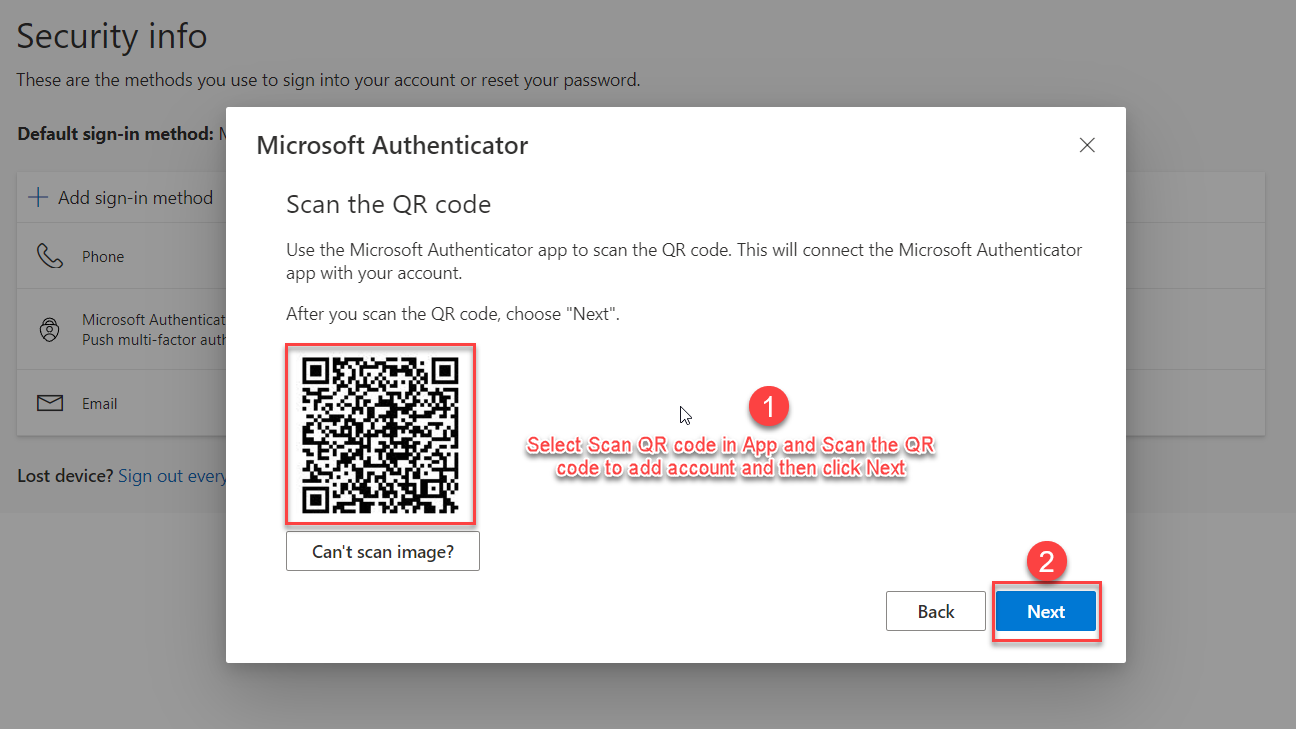
- Open the Microsoft Authenticator app on your phone.ap the + > Work or school account. then select ” Scan the QR Code”

- Use your phone to scan the QR square that is on your computer screen. and Click Next.

- Your account will be added automatically to the app
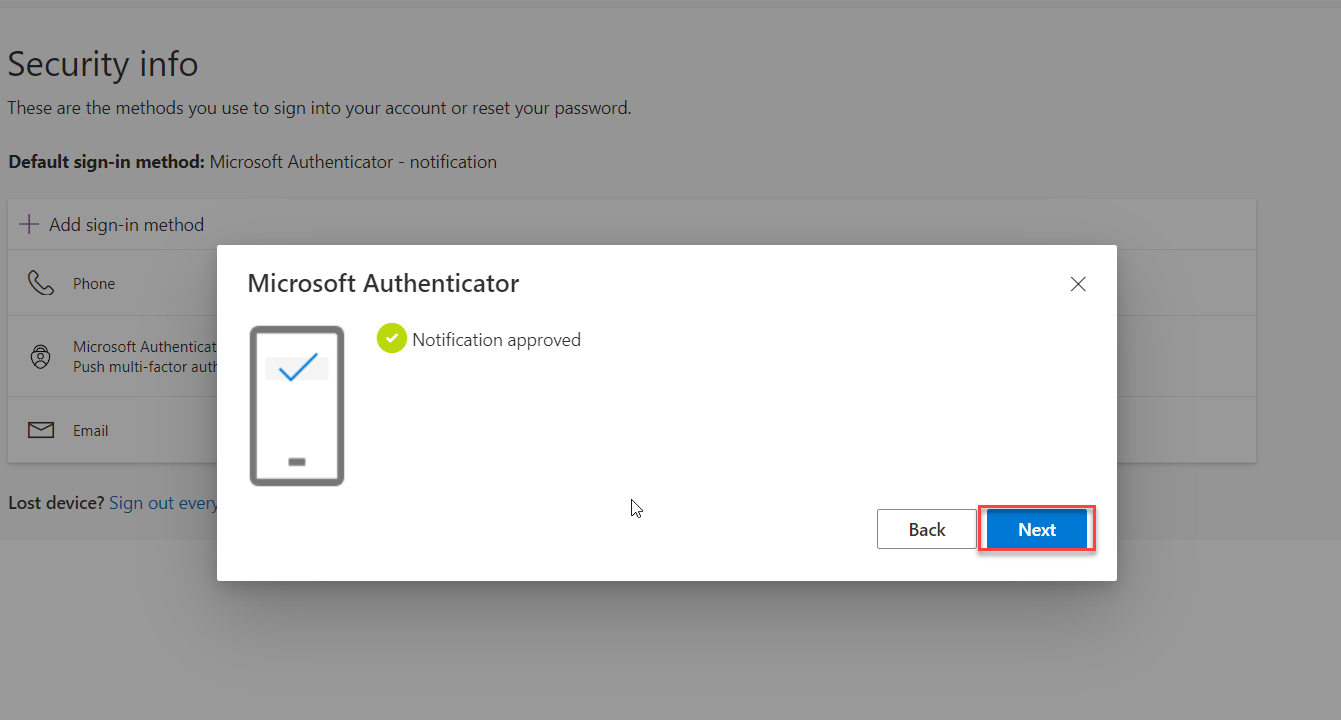
STEP 5: Approve sign in on your phone
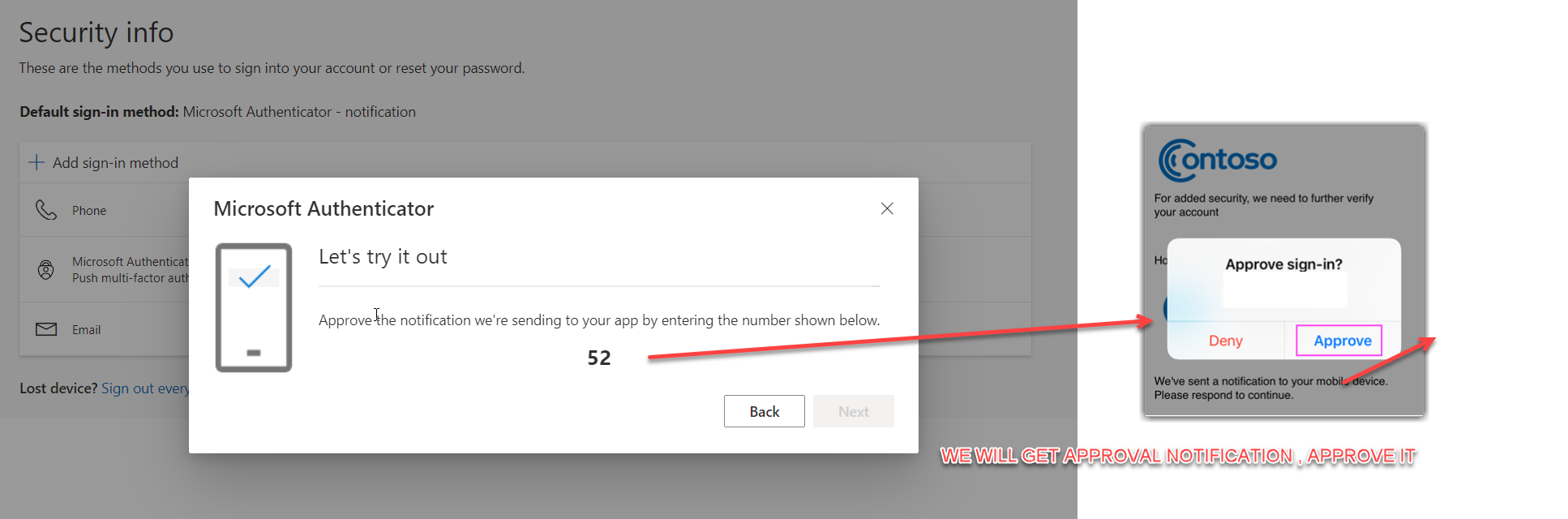
- Switch back to your phone and you’ll see a notification for a new sign in.
- Go to the Microsoft Authenticator app.
- Tap Approve to allow it.

Authenticator set up is completed.