Microsoft Dynamics 365 Intelligent Order Management IOM Step by Step Tutorial
Follow Below Steps
Step 1Create the free 30 Days Trial Version Environment for the Microsoft Dynamics 365 Intelligent Order Management
Step 2Set up an IOM environment / Configure platform connection references in Microsoft Dynamics 365 Intelligent order Management
Step 3Create a new solution for PROVIDER Customization in Microsoft Dynamics 365 IOM / Create a provider solution
Step 4Create RequestBin Custom connector (Power Platform) for Step by Step Microsoft IOM Tutorial
Step 5Create new intake provider definition for Step by Step IOM Tutorial Scenario- Microsoft Dynamics 365 Intelligent Order Management / Register a new Provider in Library
Step 6Create a provider message request handler for Quick Start Lab Scenario for Microsoft Intelligent order Management IOM tutorial
Step 7Create Fulfillment provider in Microsoft Dynamics Intelligent Order Management IOM – Order to Fulfillment in IOM
Step 8Add a provider definition logic definition to the Outlook Provider Definition in Microsoft Dynamics Intelligent Management IOM
Step 9Create a provider action - Power Automate Flow - to send a fulfillment Order payload to RequestBin
Step 10Activate the Intake, Fulfillment, & Internal Application Service provider created in Previous Step by Step IOM Tutorial
Step 11Create Orchestration policies and their associated rules for Quick Start Lab Scenario in Microsoft Dynamics 365 Intelligent Order Management IOM
Step 12Create Sales Order Orchestration flow in Microsoft Dynamics Intelligent Order Management IOM
Step 13Set up Customer(Account) and product mapping in Microsoft Dynamics Intelligent order Management IOM
Step 14Run a sample order orchestration flow in Microsoft Dynamics 365 Intelligent Order Management - END TO END DEMO IOM
Steps to create Microsoft Dynamics 365 IOM Online 30 days Trial Version
Dynamics 365 Intelligent Order Management offers a free 30-day trial. After a quick sign-up, you’ll have access to many of the app’s key features. The trial allows you to test the app with sample data and even try out your own customer data.Your trial environment includes many of the same features as the paid version.
Follow the Steps to signup for a free trial-
- To sign up for the trial: navigate to the below page with the help of a shared Link- https://dynamics.microsoft.com/en-us/intelligent-order-management/overview/?tsApp=intelligentordermanagement
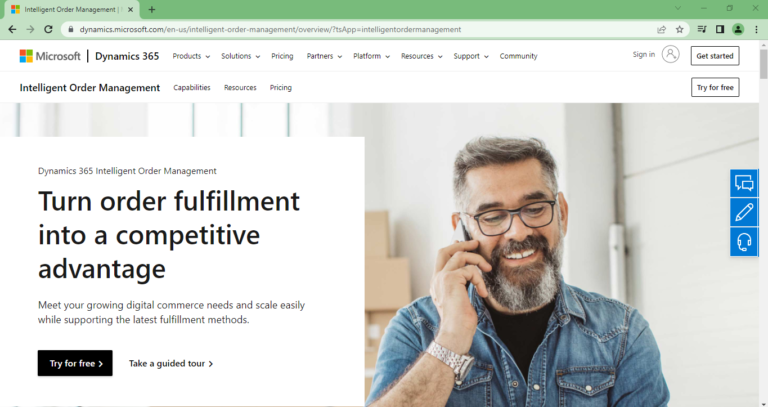
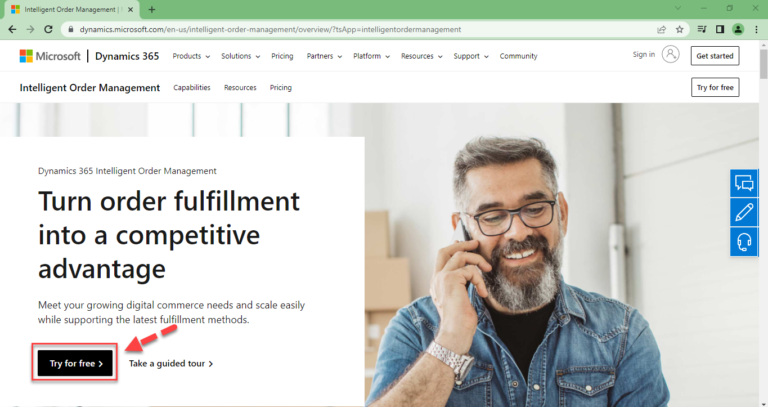
2. Click on Try for free.
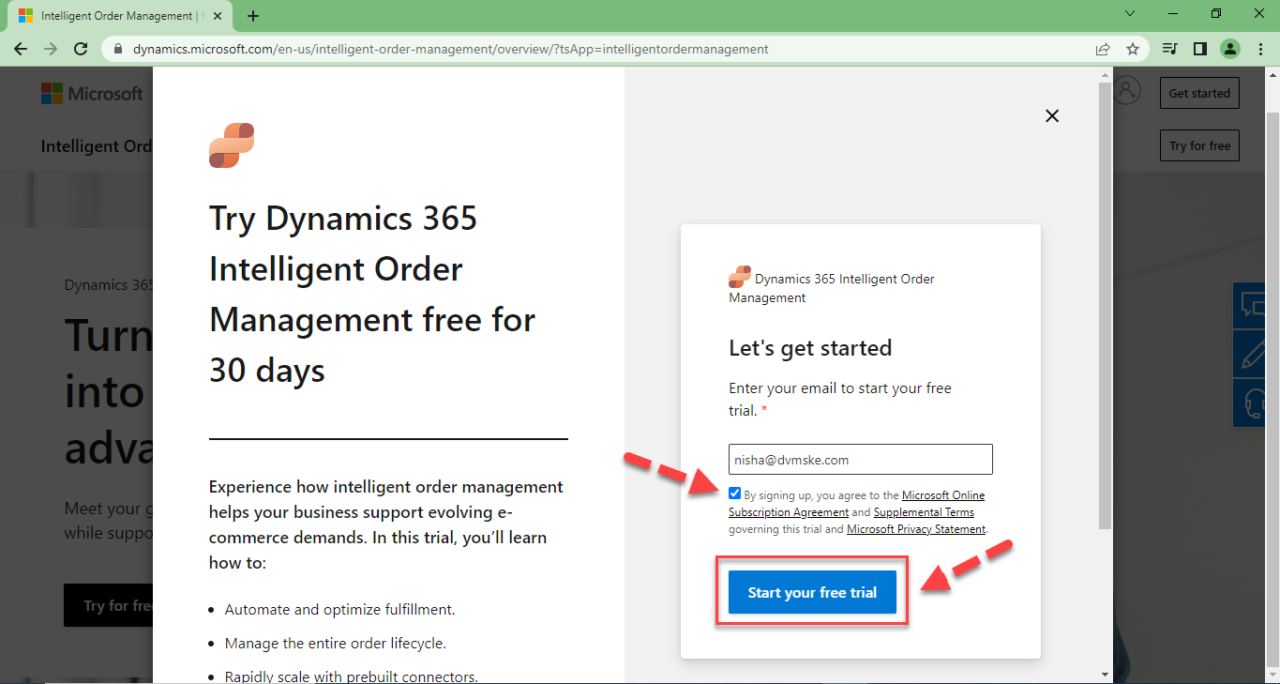
3. Enter your personal or office Email id .
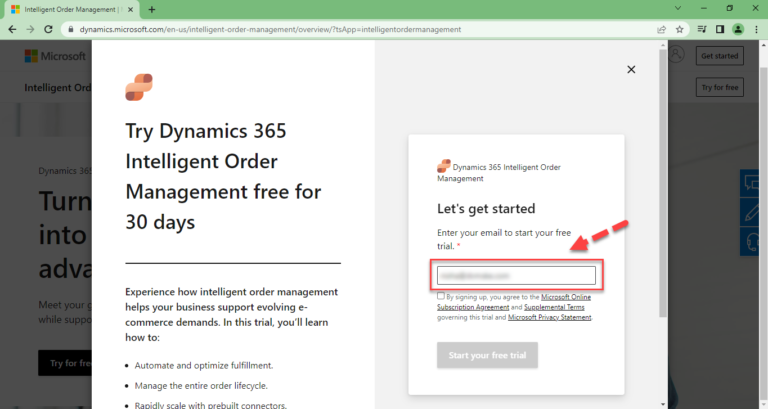
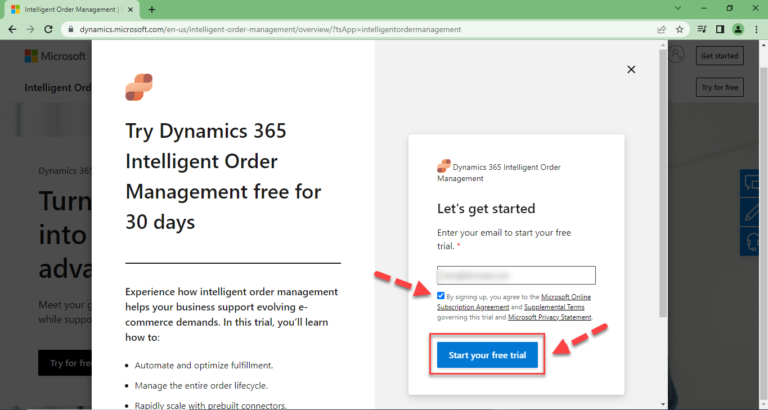
4. Check the below option to agree the Microsoft Online Subscription Agreement and Click on Start your free trial.
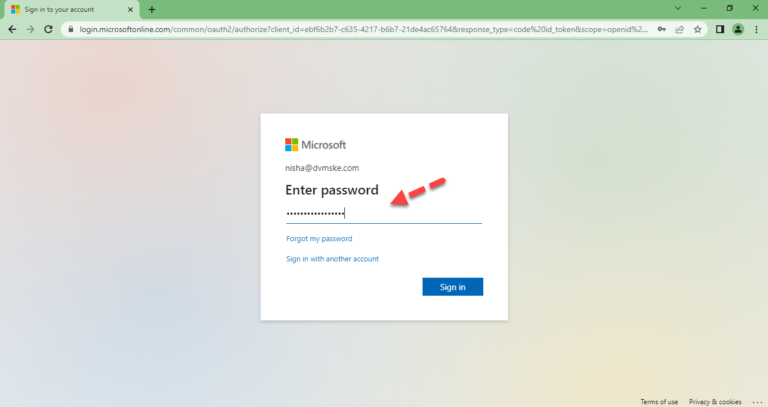
5. Enter the Password.
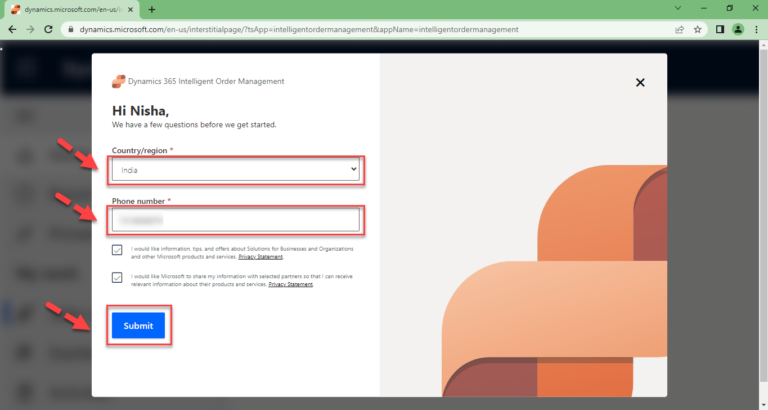
6. Enter the Country/Region ,Phone Number, Check both the below options and click on Submit.
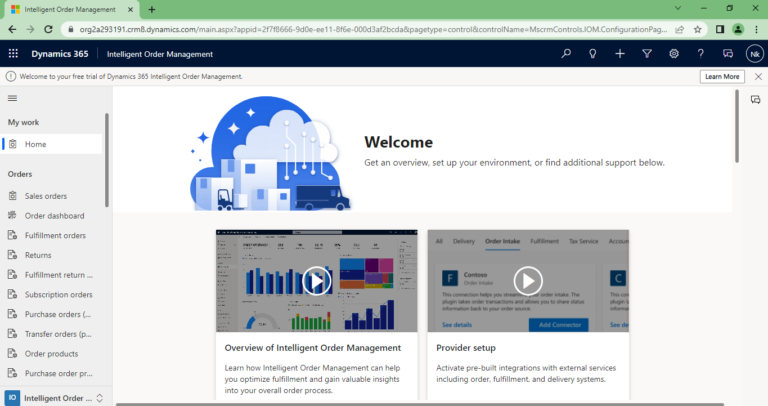
7. Now you are directed to a Intelligent Order Management Setup ,click on Get Started.
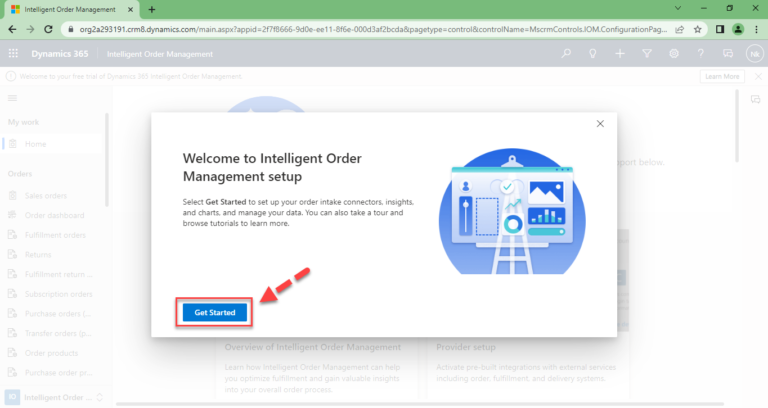
Now your 30 Days free Trial ready to use