Microsoft Dynamics 365 Intelligent Order Management IOM Step by Step Tutorial
Follow Below Steps
Step 1 - COMPLETEDCreate the free 30 Days Trial Version Environment for the Microsoft Dynamics 365 Intelligent Order Management
Step 2 - COMPLETEDSet up an IOM environment / Configure platform connection references in Microsoft Dynamics 365 Intelligent order Management
Step 3Create a new solution for PROVIDER Customization in Microsoft Dynamics 365 IOM / Create a provider solution
Step 4Create RequestBin Custom connector (Power Platform) for Step by Step Microsoft IOM Tutorial
Step 5Create new intake provider definition for Step by Step IOM Tutorial Scenario- Microsoft Dynamics 365 Intelligent Order Management / Register a new Provider in Library
Step 6Create a provider message request handler for Quick Start Lab Scenario for Microsoft Intelligent order Management IOM tutorial
Step 7Create Fulfillment provider in Microsoft Dynamics Intelligent Order Management IOM – Order to Fulfillment in IOM
Step 8Add a provider definition logic definition to the Outlook Provider Definition in Microsoft Dynamics Intelligent Management IOM
Step 9Create a provider action - Power Automate Flow - to send a fulfillment Order payload to RequestBin
Step 10Activate the Intake, Fulfillment, & Internal Application Service provider created in Previous Step by Step IOM Tutorial
Step 11Create Orchestration policies and their associated rules for Quick Start Lab Scenario in Microsoft Dynamics 365 Intelligent Order Management IOM
Step 12Create Sales Order Orchestration flow in Microsoft Dynamics Intelligent Order Management IOM
Step 13Set up Customer(Account) and product mapping in Microsoft Dynamics Intelligent order Management IOM
Step 14Run a sample order orchestration flow in Microsoft Dynamics 365 Intelligent Order Management - END TO END DEMO IOM
Create a new provider solution package
In this topic you will learn about how to create Solution package for the required provider and the steps required to create a new provider solution package in Microsoft Dynamics 365 Intelligent Order Management.
It is recommended to have one provider per solution, but multiple providers can be included in the same solution. This is the solution that can be shared and will be installed on Intelligent Order Management environments.
Create a new provider solution
To create a new provider solution, follow these steps.
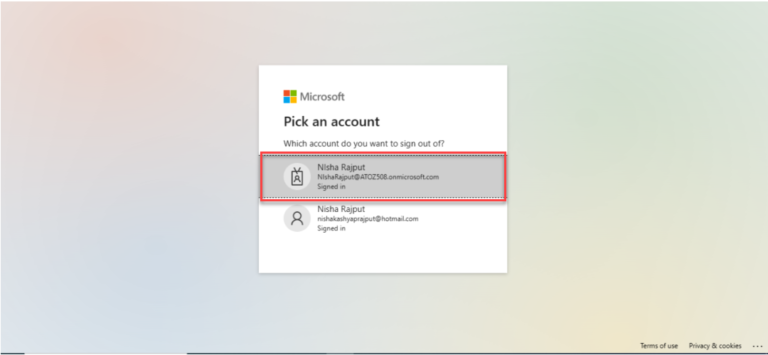
Step 1 :- Go to the Power App Maker Portal and sign in with your Intelligent Order Management credentials.
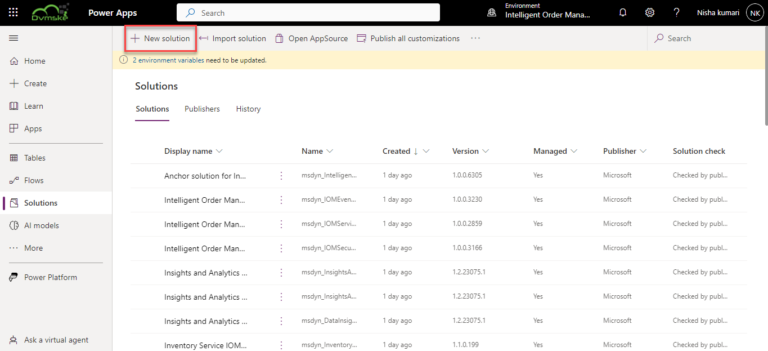
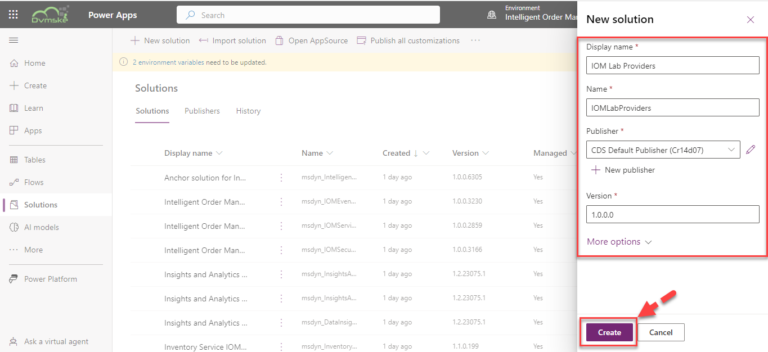
Step 2 :- Navigate to Solutions and Select New solution.
Step 3 :- Select Give the Solution a name and enter the required details
- For Display name, enter “IOM LabProviders”.
- For Name, enter “IOM LabProviders”.
- For Publisher, select CDS Default Publisher.
- For Version, enter “1.0.0.0”.
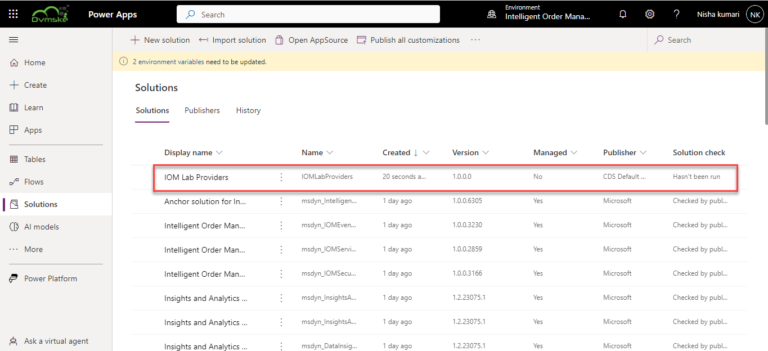
- Click on Create
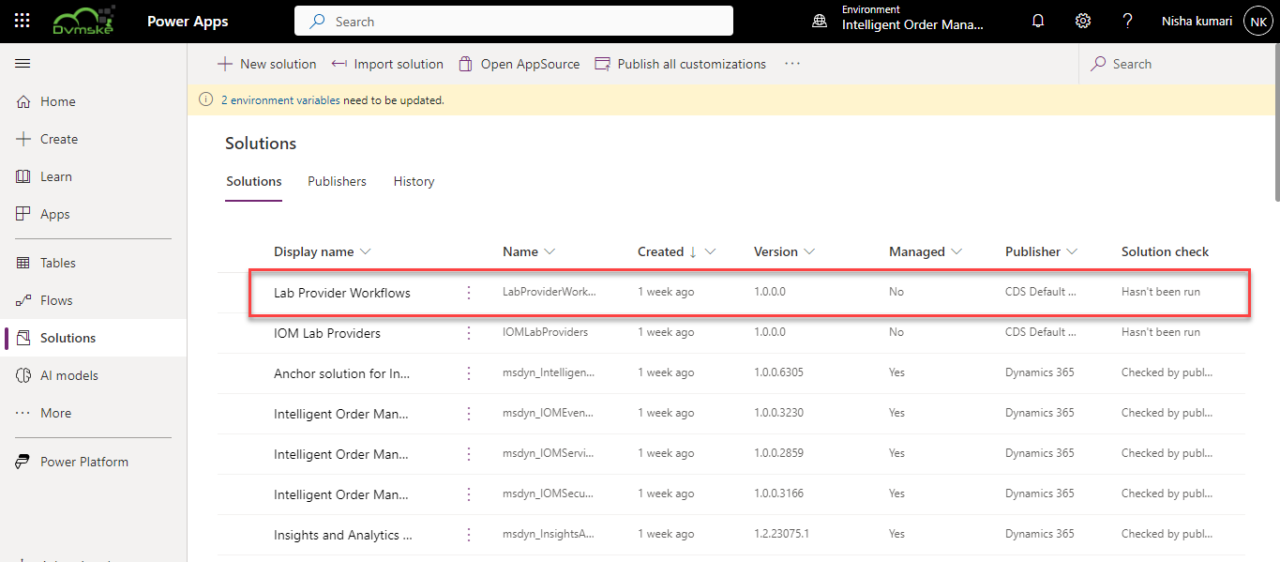
As you can see your provider Solution is ready to use .