Outlook has some amassing feature as below
- Organize your email to focus on the messages that matter most.
- Manage your calendar to schedule meetings and appointments.
- Share files from the cloud so everyone always has the latest version.
- Stay connected and productive wherever you are.
Add an email account
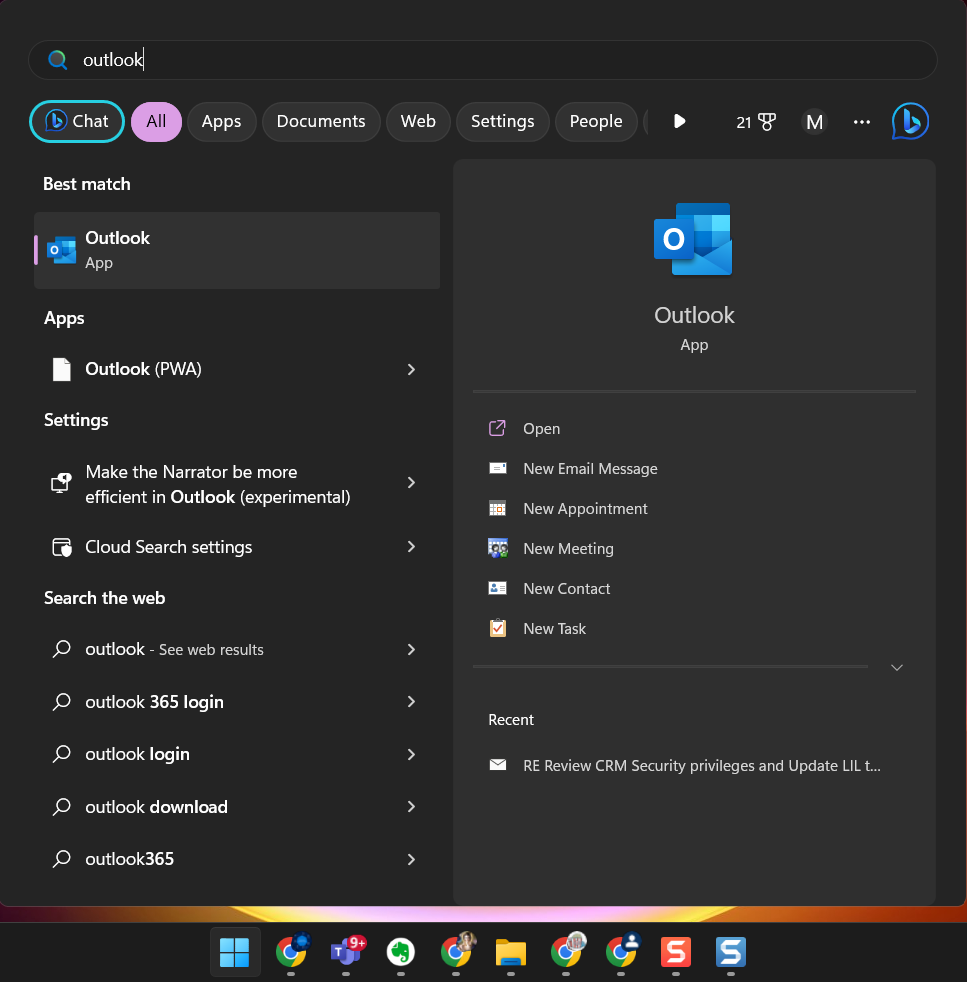
- Open Outlook -> Windows -> search Outlook

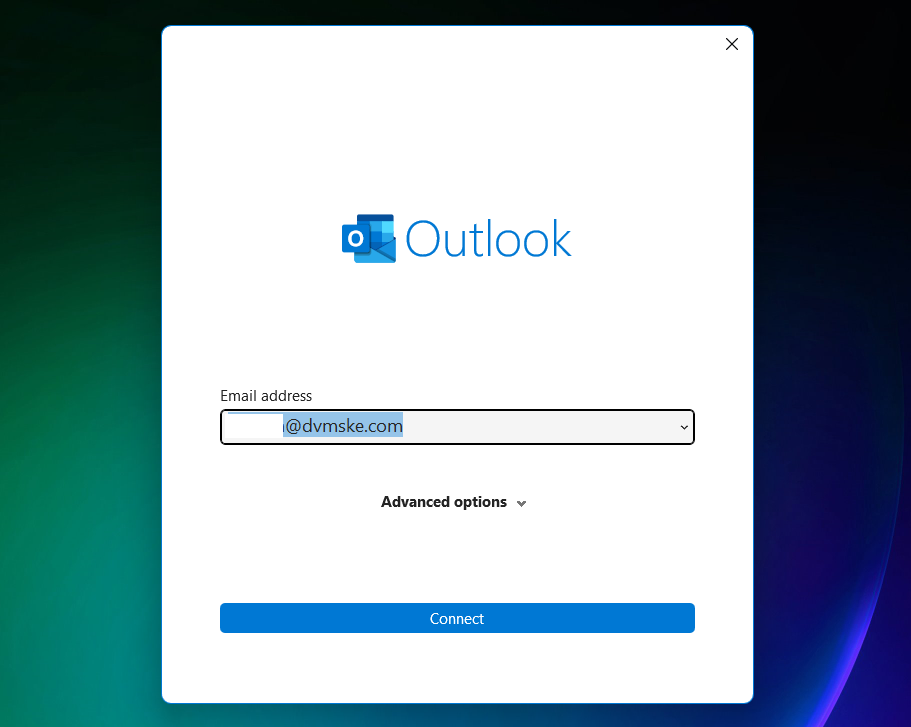
- and select File > Add Account. If you haven’t launched Outlook before, you’ll see a welcome screen.
- Enter your email address and select Connect.
If your screen looks different, enter your name, email address, and password, and select Next.

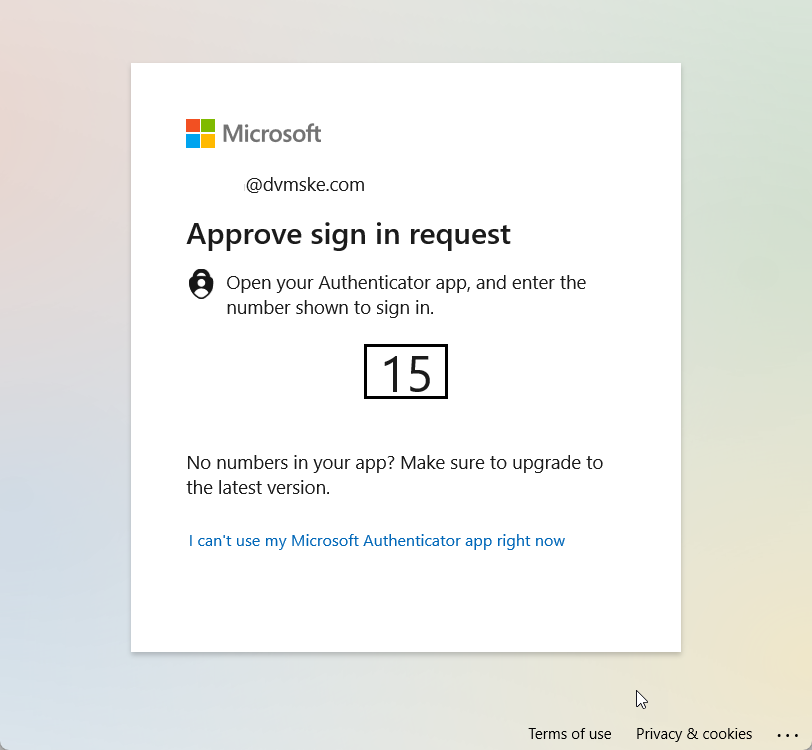
- If prompted, enter your password or MFA and select OK.

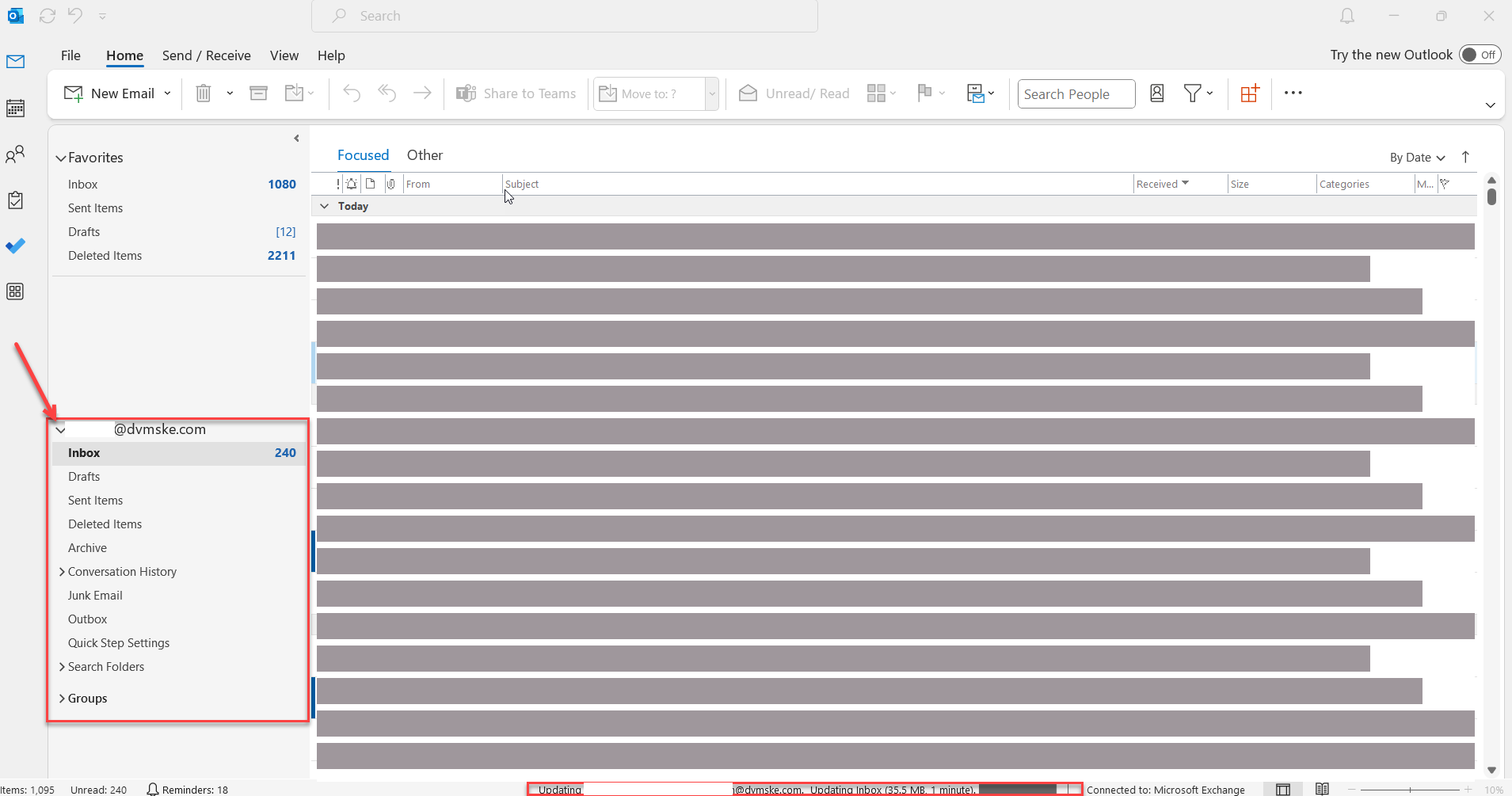
- Finished